Validación de activaciones existentes
La validación en línea le ofrece opciones de control remoto sobre la activación: su aplicación, una vez activada, puede comprobar periódicamente la validez de la activación a través de Internet. Además, tiene la posibilidad de comunicar información adicional a su aplicación de libro y aprovecharla en su código VBA.
Activar la validación en línea
Section titled “Activar la validación en línea”- En XLS Padlock, elija Online Validation:
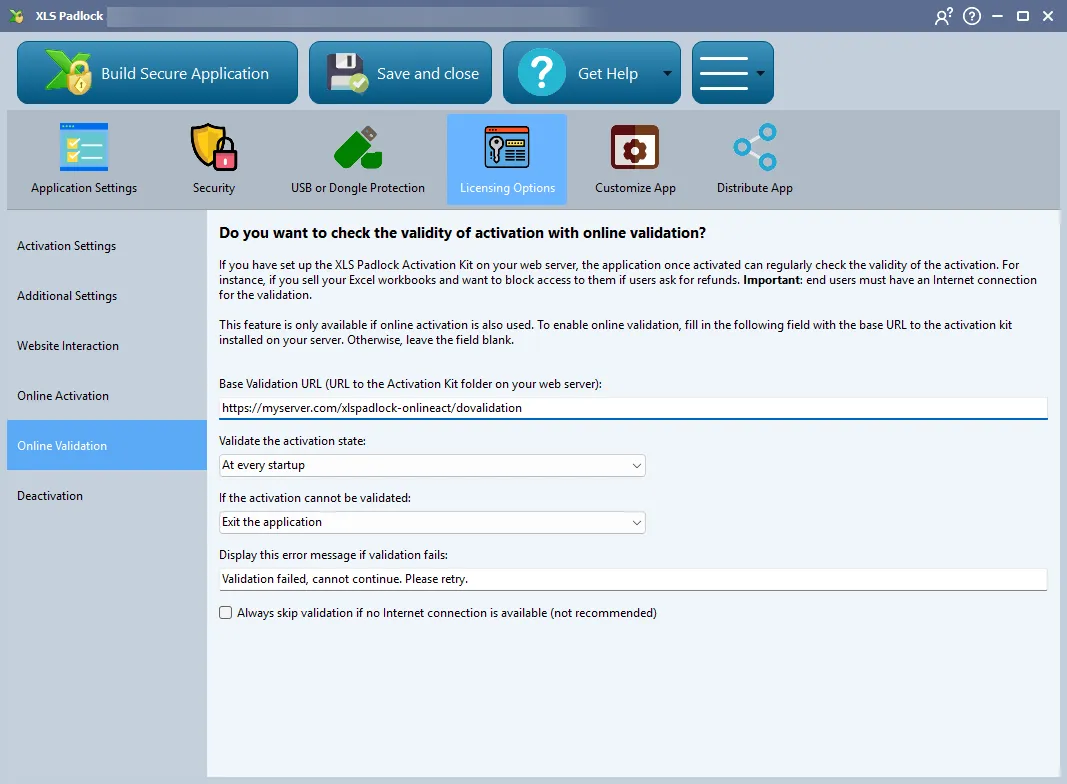
En el campo Base Validation URL, introduzca la URL de la carpeta “xlspadlock-onlineact” (consulte URL base para la activación) en su servidor web seguida de /dovalidation (no ponga una barra final /).
Por ejemplo, si la URL para acceder a su carpeta xlspadlock-onlineact en el servidor es http://activation.mydomain.com, la URL base que debe introducir es: http://activation.mydomain.com/dovalidation
Elija la frecuencia del proceso de validación y qué debe ocurrir si la validación falla.
Token seguro y proceso de validación
Section titled “Token seguro y proceso de validación”El código PHP que debe determinar si la validación es correcta o no se encuentra disponible en el archivo MainController.php, ubicado en la subcarpeta inc/app/controllers (xlspadlock-onlineact / inc / app / controllers).
El comportamiento predeterminado es permitir cualquier validación. Por lo tanto, este comportamiento debe modificarse según sus necesidades. Para ello, debe personalizarse el código de la siguiente función en el archivo MainController.php:
function dovalidation($f3)Cuando un usuario activa la aplicación, esta recibe un token de seguridad de la aplicación web que es único y específico para el usuario. Normalmente, necesita personalizar la aplicación web de modo que este token de seguridad esté vinculado directamente a un registro de base de datos, por ejemplo, para poder asociar rápidamente al usuario con esa información almacenada en su base de datos. Esto se explica en la función getactivation() de MainController.php (cerca de la línea 62), donde $sec_token se crea a partir de la clave de activación.
La aplicación de libro almacenará este token de seguridad en el ordenador del usuario y lo devolverá a la aplicación web durante el proceso de validación. De este modo, podrá identificar al cliente gracias a este token de seguridad y recuperar el registro asociado al cliente en su base de datos.
Modifique la función dovalidation() en el archivo MainController.php (cerca de la línea 105) según sus necesidades.
Pasar datos personalizados de la aplicación web a la aplicación de libro
Section titled “Pasar datos personalizados de la aplicación web a la aplicación de libro”Es posible pasar información adicional de la aplicación web a la aplicación de libro y procesarla con VBA. Por ejemplo, puede pasar información sobre la suscripción que tiene un usuario (cuántos días quedan en la suscripción actual, etc.).
Modifique la variable $additionalvaldata en la función dovalidation() del archivo MainController.php (cerca de la línea 111) según sus necesidades:
$additionalvaldata = "Anything you want to pass to the workbook application (custom license info, etc)";El contenido de esa variable se envía a la aplicación de libro y estará disponible a través del siguiente fragmento de código VBA:
Public Function ReturnValidationAdditionalServerData()
Dim XLSPadlock As Object
On Error GoTo Err
Set XLSPadlock = Application.COMAddIns("GXLSForm.GXLSFormula").Object
ReturnValidationAdditionalServerData = XLSPadlock.PLEvalVar("ValidationAddServerData")
Exit Function
Err:
ReturnValidationAdditionalServerData = ""
End Function
Por ejemplo, el siguiente código VBA muestra los datos adicionales personalizados que enviamos de forma predeterminada en una celda:
Private Sub Workbook_Open()
ThisWorkbook.ActiveSheet.Range("B6").Value = ReturnValidationAdditionalServerData
End Sub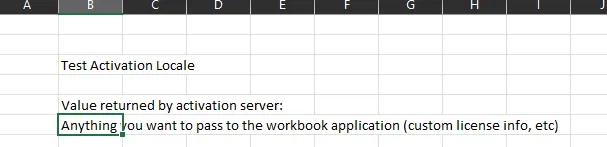
Por lo tanto, la información se actualiza en cada validación.