Descripción del proceso de validación
El WooCommerce Integration Kit admite la función de validación de XLS Padlock: puede configurar su libro compilado en EXE para que compruebe regularmente la validez de la activación.
Usos posibles:
- vende libros de Excel y desea bloquear el acceso a ellos si los usuarios finales solicitan reembolsos.
- desea controlar regularmente quién puede acceder a los libros de Excel.
Para activar la función de validación, rellene el campo de la URL base de validación.
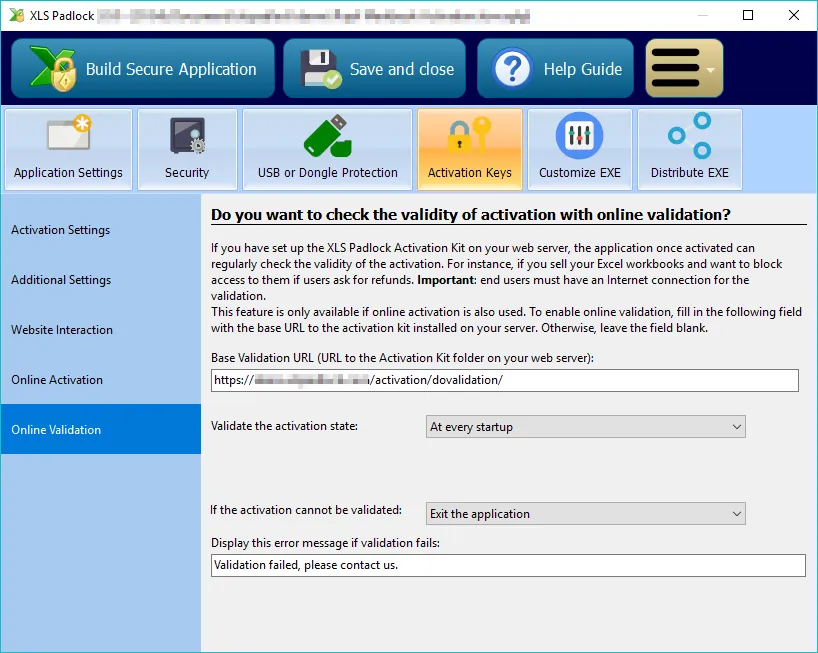
En el campo Base Validation URL, introduzca la URL base tal y como se ha definido anteriormente (véase URL base para la activación) en su servidor web seguida de /dovalidation/{product ID} (la barra final / no es obligatoria) y reemplace {product ID} con el ID del producto asociado a su libro (y definido en workbooks.json).
En nuestro caso, sería:
https://www.mywebsite.com/wordpress/activation/dovalidation/68
A continuación, defina la frecuencia de validación y qué debe ocurrir si la validación falla. Consulte la Guía del usuario de XLS Padlock para obtener más detalles sobre cada ajuste.
Recompile su libro EXE con XLS Padlock.
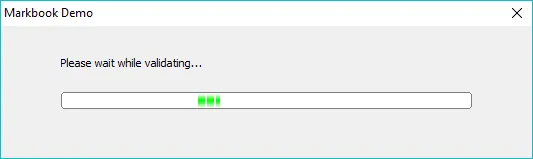
El libro compilado en EXE ya puede realizar la validación al iniciarse:
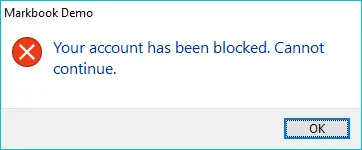
Supongamos que ha bloqueado el acceso de su cliente (véase Bloqueo de un cliente): recibirá este error (devuelto por la aplicación web):
De lo contrario, si la validación es correcta, el libro compilado en EXE continúa su ejecución.
Durante la validación, el kit de WooCommerce también comprueba el estado del pedido.
Será rechazada si el estado es pending, processing, on-hold, cancelled, refunded o failed. Esto garantiza que solo se validen los clientes que han pagado.