Ejecutar como una aplicación solo de VBA (ocultar la ventana de Excel por completo)
Si su libro protegido funciona enteramente mediante código VBA y UserForms, y la hoja de cálculo en sí no debe ser vista nunca por sus usuarios finales, puede distribuirlo como una aplicación solo de VBA. La ventana principal de Excel permanece oculta de principio a fin, incluido su icono de la barra de tareas, y solo aparece en pantalla su UserForm. Su aplicación luce y se comporta como un programa independiente de Windows, sin ningún rastro visible de Excel.
Esta opción está disponible desde XLS Padlock 2026.0.
Cuándo utilizarla
Section titled “Cuándo utilizarla”Utilice el modo solo de VBA cuando se cumplan todas las condiciones siguientes:
- La interfaz de usuario de su aplicación está construida con UserForms, no con hojas de cálculo.
- No desea que los usuarios finales vean, editen o interactúen con la hoja de cálculo subyacente.
- Desea un aspecto limpio y con su marca al inicio, sin pantalla de presentación de Excel, sin entrada de Excel en la barra de tareas.
Si su aplicación depende de hojas de cálculo visibles (cuadrículas de entrada de datos, paneles representados como celdas, etc.), no active esta opción, ya que las hojas de cálculo no serán visibles para sus usuarios.
Cómo activarla
Section titled “Cómo activarla”- Abra su proyecto en XLS Padlock.
- Vaya a la página Splash Screen (en Application Customization).
- Marque la opción “Run as a VBA-only app (Excel main window fully hidden)”.
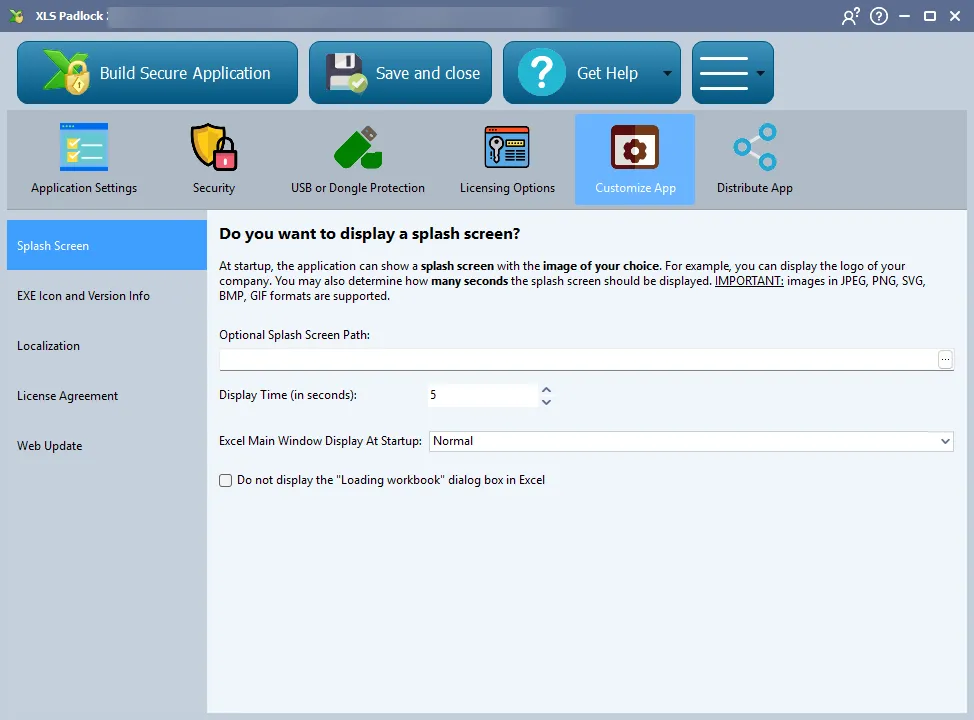
Eso es todo por parte de XLS Padlock. Ahora debe añadir un pequeño fragmento de código VBA a su libro para que su UserForm se muestre al iniciarse la aplicación.
Añadir el código VBA de inicio
Section titled “Añadir el código VBA de inicio”En el editor de VBA de Excel, abra el módulo ThisWorkbook y pegue:
Private Sub Workbook_Open() Application.Visible = False UserForm1.ShowEnd SubSustituya UserForm1 por el nombre del formulario que desea mostrar en primer lugar.
Lo que ve el usuario final
Section titled “Lo que ve el usuario final”Con la casilla activada y el fragmento de VBA anterior:
- Sin pantalla de presentación de Excel al iniciar.
- Sin ventana principal de Excel en ningún momento durante la vida de la aplicación.
- Sin entrada de “Excel” en la barra de tareas de Windows, solo su UserForm.
- Su aplicación se comporta como un programa independiente de Windows construido en torno a su formulario.
Si también ha configurado una splash screen y ocultado el cuadro de diálogo Loading workbook, toda la secuencia de inicio permanece dentro de su interfaz con su marca desde el primer fotograma.
Cerrar la aplicación
Section titled “Cerrar la aplicación”Dado que Excel está oculto, el botón estándar de cierre de Excel no está disponible para sus usuarios. Normalmente, la aplicación se cierra desde su UserForm mediante:
Private Sub btnClose_Click() Application.QuitEnd SubO, si desea dejar Excel en ejecución pero descargar su interfaz:
Unload MeInteracción con otros ajustes
Section titled “Interacción con otros ajustes”| Ajuste | Comportamiento cuando “VBA-only app” está activado |
|---|---|
| Excel Main Window Display at Startup (Normal / Maximized / Minimized) | Anulado, Excel siempre se inicia oculto. |
| Do not display the “Loading workbook” dialog box | Recomendable activarlo también, para un inicio totalmente silencioso. |
| Splash Screen | Funciona según lo configurado. Se muestra incluso antes de que Excel se cargue. |