Desactivación
El proceso de desactivación en XLS Padlock permite a los usuarios finales anular el registro de sus aplicaciones de libro de Excel activadas en su dispositivo actual, lo que les permite transferir su licencia a otro dispositivo. Este proceso resulta útil en situaciones como cambios de hardware, actualizaciones del sistema o al cambiar a un equipo nuevo.
Habilitar la desactivación en línea
Section titled “Habilitar la desactivación en línea”En XLS Padlock, elija Deactivation y marque “Allow deactivation for this workbook application”:
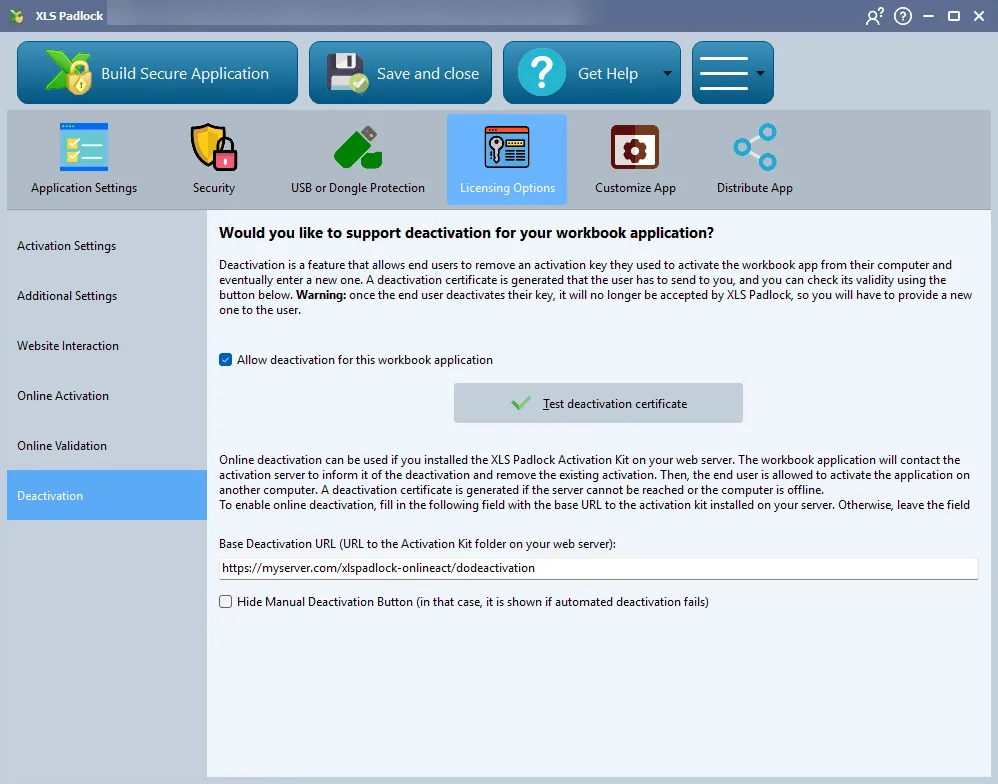
En el campo Base Deactivation URL, introduzca la URL de la carpeta “xlspadlock-onlineact” (consulte URL base para la activación) en su servidor web seguida de /dodeactivation (no ponga una barra final /).
Por ejemplo, si la URL para acceder a su carpeta xlspadlock-onlineact en el servidor es http://activation.mydomain.com, la URL base que debe introducir es: http://activation.mydomain.com/dodeactivation
Eso es todo. El proceso está automatizado.
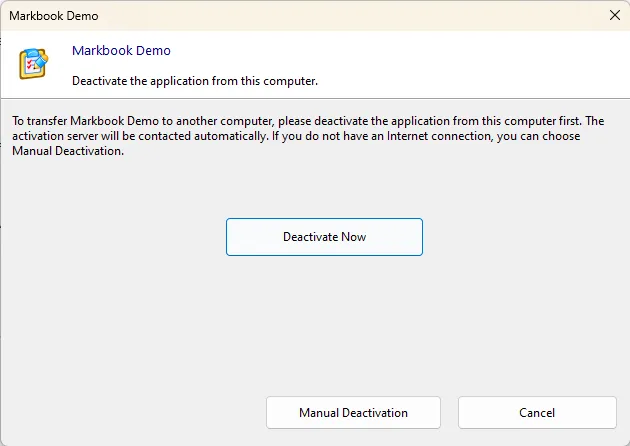
Cuando los usuarios finales inician el proceso de desactivación, se muestra el siguiente cuadro de diálogo:
Debe modificar la función dodeactivation() en el archivo MainController.php (cerca de la línea 154) según sus necesidades. Por ejemplo, añada el código PHP para eliminar el identificador de sistema del usuario $systid del registro del usuario en su base de datos que se almacenó durante la activación.