Désactivation
Le processus de désactivation dans XLS Padlock permet aux utilisateurs finaux de désinscrire leurs applications de classeurs Excel activées de leur appareil actuel, ce qui leur permet de transférer leur licence vers un autre appareil. Ce processus est utile dans des situations telles qu-un changement de matériel, une mise à niveau du système, ou lors du passage à un nouvel ordinateur.
Activer la désactivation en ligne
Section titled “Activer la désactivation en ligne”Dans XLS Padlock, choisissez Deactivation et cochez “Allow deactivation for this workbook application” (autoriser la désactivation pour cette application de classeur) :
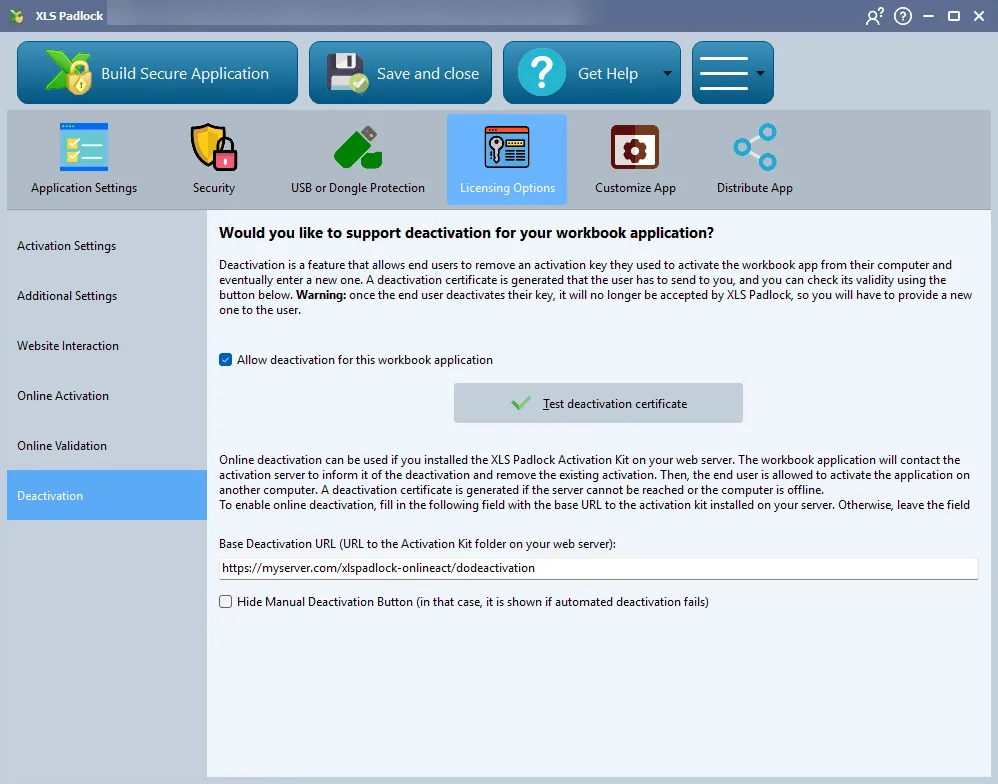
Dans le champ Base Deactivation URL (URL de base pour la désactivation), saisissez l-URL du dossier “xlspadlock-onlineact” (voir URL de base pour l-activation) sur votre serveur web suivie de /dodeactivation (ne mettez pas de barre oblique finale /).
Par exemple, si l-URL d-accès à votre dossier xlspadlock-onlineact sur le serveur est http://activation.mydomain.com, l-URL de base à saisir est : http://activation.mydomain.com/dodeactivation
C-est tout. Le processus est automatisé.
Lorsque les utilisateurs finaux lancent le processus de désactivation, la boîte de dialogue suivante s-affiche :
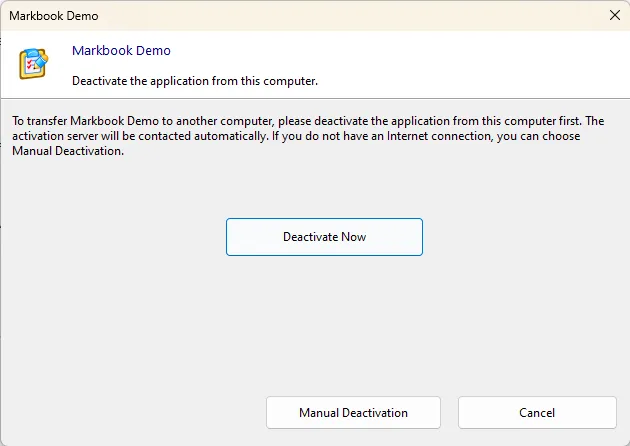
Vous devez modifier la fonction dodeactivation() dans le fichier MainController.php (vers la ligne 154) selon vos besoins. Par exemple, ajoutez le code PHP permettant de supprimer l-identifiant système $systid de l-utilisateur de son enregistrement dans votre base de données qui a été stocké lors de l-activation.