Options Cloud et IA
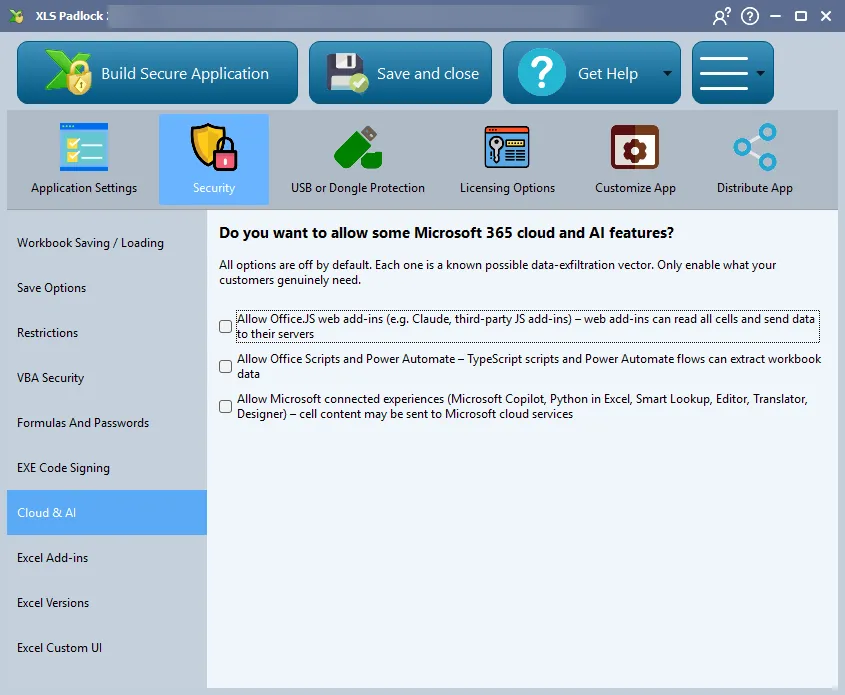
Excel moderne intègre plusieurs fonctionnalités cloud et IA capables de lire votre classeur et d’envoyer son contenu vers des serveurs externes. Pour garder votre application protégée hermétique, XLS Padlock les bloque toutes par défaut. C’est vous qui décidez, une par une, lesquelles autoriser.
Vous trouverez ces paramètres dans le concepteur XLS Padlock, sous l’onglet Security, sur la page Cloud & AI.
Pourquoi ces fonctionnalités sont bloquées par défaut
Section titled “Pourquoi ces fonctionnalités sont bloquées par défaut”Chaque option de cette page est un moyen connu pour les données du classeur de quitter la machine de l’utilisateur final. Un classeur protégé est censé garder vos formules, vos données et votre code VBA sous votre contrôle. XLS Padlock part donc de la position la plus sûre : tout est désactivé. N’activez que ce dont vos clients ont réellement besoin.
Options disponibles
Section titled “Options disponibles”Les trois options sont décochées (bloquées) par défaut.
Allow Office JS web add-ins
Section titled “Allow Office JS web add-ins”Les compléments web Office JS (aussi appelés web add-ins) s’exécutent à l’intérieur d’Excel et peuvent lire chaque cellule du classeur ouvert, puis envoyer ces données vers leurs propres serveurs. Cela inclut les compléments tiers tels que le plugin Claude for Excel ainsi que tout autre complément JS installé depuis l’Office store ou chargé de manière indépendante (sideloaded).
Lorsque cette option est désactivée, les compléments web ne peuvent pas se charger contre votre classeur protégé. Ne l’activez que si votre application dépend d’un complément web précis auquel vous faites confiance.
Allow Office Scripts and Power Automate
Section titled “Allow Office Scripts and Power Automate”Les Office Scripts (scripts d’automatisation TypeScript) et les flux Power Automate peuvent lire le contenu du classeur et le sortir de l’application. Laissez cette option désactivée, sauf si votre flux de travail en dépend. L’onglet Automate d’Excel (Office Scripts, Power Automate) est masqué dans l’application compilée lorsque cette option est décochée, et affiché, pleinement fonctionnel, lorsqu’elle est cochée, quelle que soit la restriction Disable all ribbons and toolbars.
Allow Microsoft connected experiences
Section titled “Allow Microsoft connected experiences”Les expériences connectées Microsoft (Microsoft connected experiences) envoient le contenu des cellules vers les services cloud de Microsoft. Cela couvre Microsoft Copilot, Python dans Excel, la Recherche intelligente (Smart Lookup), l’Éditeur (Editor), le Traducteur (Translator) et le Concepteur (Designer). Ne l’activez que si vos clients ont besoin de ces fonctionnalités et que vous acceptez que le contenu des cellules concernées puisse être traité dans le cloud Microsoft.
Remarques
Section titled “Remarques”- Ces options s’appliquent à l’application compilée, pas au concepteur XLS Padlock.
- Le blocage de ces surfaces masque également leurs points d’entrée dans le ruban Excel (par exemple le menu déroulant des compléments, l’onglet Automate et le bouton Copilot), de sorte que les utilisateurs finaux ne sont pas invités à utiliser une fonctionnalité qui est désactivée.
- Les compléments COM et les compléments Excel intégrés sont gérés séparément. Voir Comment gérer les compléments Excel.