Exécuter en tant qu'application VBA uniquement (masquer complètement la fenêtre Excel)
Si votre Classeur protégé est entièrement piloté par du code VBA et des UserForms, et que la feuille de calcul elle-même n’est jamais destinée à être vue par vos utilisateurs finaux, vous pouvez le distribuer comme une application VBA uniquement. La fenêtre principale d’Excel reste masquée du début à la fin, y compris son icône dans la barre des tâches, et seul votre UserForm apparaît à l’écran. Votre application a l’apparence et le comportement d’un programme Windows autonome, sans aucune trace visible d’Excel.
Cette option est disponible depuis XLS Padlock 2026.0.
Quand l’utiliser
Section titled “Quand l’utiliser”Utilisez le mode VBA uniquement lorsque toutes les conditions suivantes sont réunies :
- L’interface utilisateur de votre application est construite avec des UserForms, et non avec des feuilles de calcul.
- Vous ne voulez pas que les utilisateurs finaux voient, modifient ou interagissent avec la feuille de calcul sous-jacente.
- Vous voulez une présentation soignée et personnalisée au démarrage, sans écran de démarrage Excel, sans entrée Excel dans la barre des tâches.
Si votre application repose sur des feuilles de calcul visibles (grilles de saisie de données, tableaux de bord rendus sous forme de cellules, etc.), n’activez pas cette option, les feuilles de calcul ne seront pas visibles pour vos utilisateurs.
Comment l’activer
Section titled “Comment l’activer”- Ouvrez votre projet dans XLS Padlock.
- Accédez à la page Splash Screen (sous Application Customization).
- Cochez l’option “Run as a VBA-only app (Excel main window fully hidden)”.
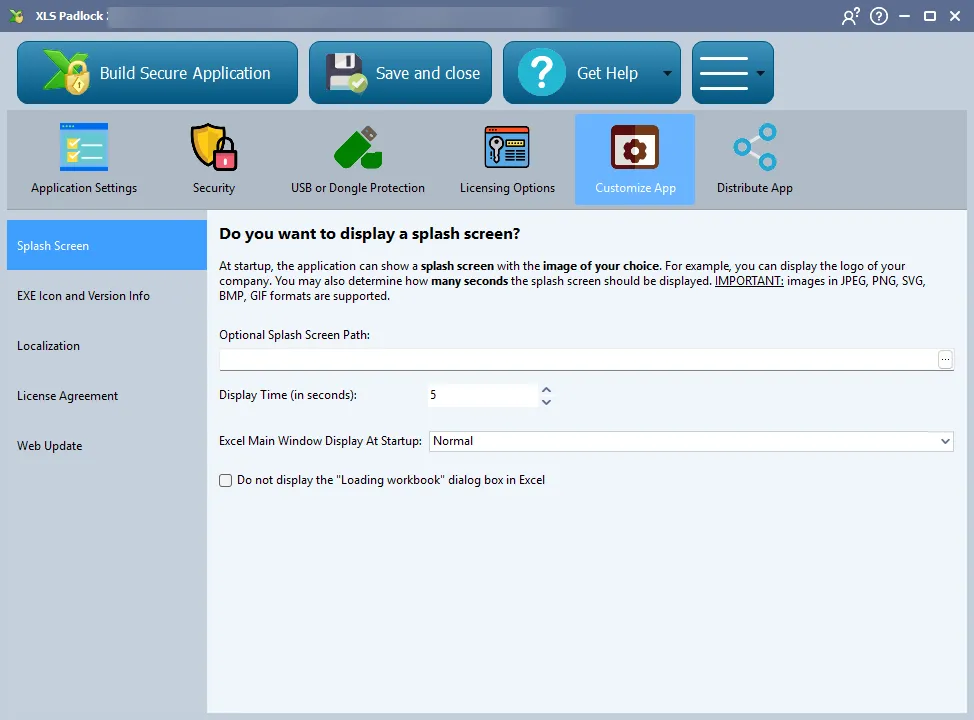
C’est tout du côté de XLS Padlock. Vous devez maintenant ajouter un petit morceau de code VBA à votre Classeur afin que votre UserForm s’affiche au démarrage de l’application.
Ajouter le code VBA de démarrage
Section titled “Ajouter le code VBA de démarrage”Dans l’éditeur VBA d’Excel, ouvrez le module ThisWorkbook et collez :
Private Sub Workbook_Open() Application.Visible = False UserForm1.ShowEnd SubRemplacez UserForm1 par le nom du formulaire que vous souhaitez afficher en premier.
Ce que voit l’utilisateur final
Section titled “Ce que voit l’utilisateur final”Avec la case à cocher activée et l’extrait VBA ci-dessus :
- Aucun écran de démarrage Excel au lancement.
- Aucune fenêtre principale d’Excel à aucun moment de la durée de vie de l’application.
- Aucune entrée « Excel » dans la barre des tâches de Windows, seulement votre UserForm.
- Votre application se comporte comme un programme Windows autonome construit autour de votre formulaire.
Si vous avez également configuré un splash screen et masqué la boîte de dialogue Loading workbook, toute la séquence de démarrage reste dans votre interface personnalisée dès la toute première image.
Fermeture de l’application
Section titled “Fermeture de l’application”Comme Excel est masqué, le bouton de fermeture Excel standard n’est pas disponible pour vos utilisateurs. Vous fermez généralement l’application depuis votre UserForm à l’aide de :
Private Sub btnClose_Click() Application.QuitEnd SubOu si vous souhaitez laisser Excel s’exécuter tout en déchargeant votre interface :
Unload MeInteraction avec d’autres paramètres
Section titled “Interaction avec d’autres paramètres”| Paramètre | Comportement lorsque « VBA-only app » est activé |
|---|---|
| Excel Main Window Display at Startup (Normal / Maximized / Minimized) | Ignoré, Excel démarre toujours masqué. |
| Do not display the “Loading workbook” dialog box | Recommandé de l’activer également, pour un démarrage entièrement silencieux. |
| Splash Screen | Fonctionne tel que configuré. Affiché avant même qu’Excel ne charge. |