Kit d'intégration WooCommerce pour XLS Padlock
En plus de fournir un contrôle d’accès à distance pour les classeurs Excel, l’utilisation de l’activation en ligne pour sécuriser vos classeurs avec XLS Padlock présente plusieurs avantages :
- Protection anti-piratage : l’activation en ligne aide à prévenir le piratage et la distribution non autorisée de vos classeurs Excel en garantissant que seuls les utilisateurs autorisés peuvent y accéder.
- Souplesse : grâce à l’activation en ligne, vous pouvez proposer à vos clients des abonnements souples pour vos classeurs, par exemple des abonnements mensuels, annuels ou à vie, et leur offrir la possibilité de renouveler ou de mettre à niveau facilement leurs abonnements.
- Validation automatique : l’activation en ligne permet la validation automatique des licences utilisateur, réduisant le besoin de validation manuelle et améliorant l’expérience utilisateur globale.
- La désactivation permet aux clients de transférer facilement leur licence d’un ordinateur à un autre.
- Meilleur service client : avec l’activation en ligne, vous pouvez offrir un meilleur service client en permettant aux utilisateurs d’activer facilement leurs licences et de gérer leurs abonnements, sans intervention manuelle.
Globalement, l’utilisation de l’activation en ligne pour sécuriser vos classeurs Excel offre un moyen pratique, sûr et souple de contrôler l’accès des utilisateurs et de protéger votre propriété intellectuelle. Vous pouvez vendre et bloquer l’accès des clients si leur abonnement a expiré pour défaut de paiement.
Les applications de classeurs compilées avec XLS Padlock peuvent communiquer via une application web propulsée par ce kit d’intégration et votre site web propulsé par WooCommerce afin de gérer automatiquement les activations.
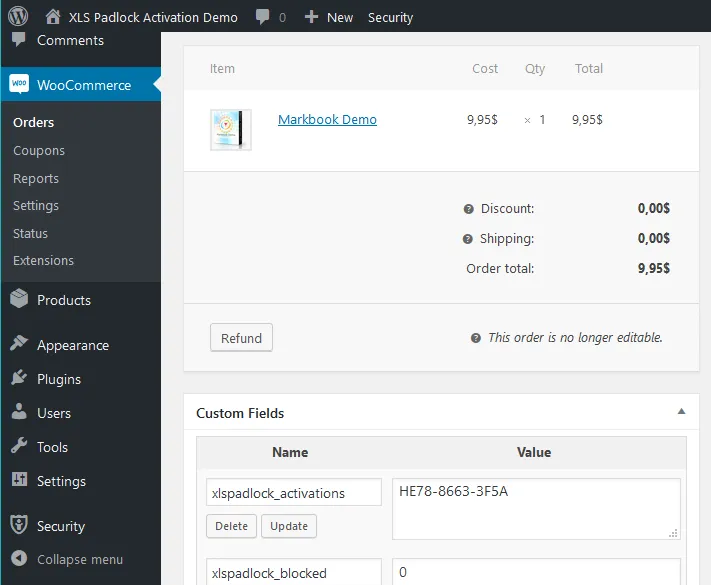
Le guide suivant contient les instructions pour configurer l’application web, la lier à votre site web WooCommerce et à vos classeurs Excel. Ensuite, l’activation en ligne et, en option, la validation seront fonctionnelles. Vous pourrez gérer l’accès de vos clients directement depuis WooCommerce.
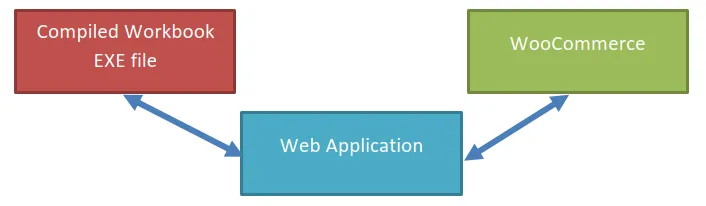
Ce kit d’intégration ne nécessite aucun plug-in WordPress particulier.
Pour commencer
Section titled “Pour commencer”- Vérifiez que votre serveur respecte la configuration requise pour le serveur.
- Suivez Copier les fichiers sur votre serveur, puis la configuration de l’URL de base et de la clé de chiffrement locale.
- Modifiez config.ini avec votre identifiant utilisateur XLS Padlock.
- Testez votre installation, puis associez vos fichiers EXE de classeurs compilés.
- Choisissez votre modèle de vente : commandes classiques ou abonnements.
Sujets
Section titled “Sujets”Installation
Section titled “Installation”- Configuration requise pour le serveur
- Copier les fichiers sur votre serveur
- URL de base pour l’activation
- Configurer la clé de chiffrement locale
- Étape 2 : configurer config.ini
- Étape 3 : tester votre installation
- Étape 4 : associer vos fichiers EXE de classeurs compilés
Commandes classiques
Section titled “Commandes classiques”- Configurer le produit classique dans workbooks.json
- Configurer le classeur Excel
- Description du processus d’activation
- Envoyer le jeton d’activation aux clients
- Configurer la désactivation (recommandé)
- Utiliser les champs personnalisés WooCommerce
- Bloquer un client
- Description du processus de validation
Abonnements
Section titled “Abonnements”- Configurer le produit d’abonnement dans workbooks.json
- Configurer le classeur Excel pour les abonnements
- Processus d’activation pour les abonnements
- Envoyer le jeton d’activation pour les abonnements
- Configurer la désactivation pour les abonnements
- Utiliser les champs personnalisés WooCommerce (abonnement)
- Bloquer un client (abonnement)
- Processus de validation pour les abonnements