Setting up deactivation for subscriptions
The deactivation process in XLS Padlock allows end-users to unregister their activated Excel workbook apps from their current device, enabling them to transfer their license to another device. This process is useful in scenarios like hardware changes, system upgrades, or when switching to a new computer.
The WooCommerce Integration Kit manages the online deactivation process efficiently, even for subscriptions. When a user decides to deactivate a license on their device, the process is automated, streamlining the workflow for both users and administrators. No need to check deactivation certificates manually.
To enable the validation feature, tick the “Allow deactivation for this workbook application” and fill in the Base Deactivation URL field:
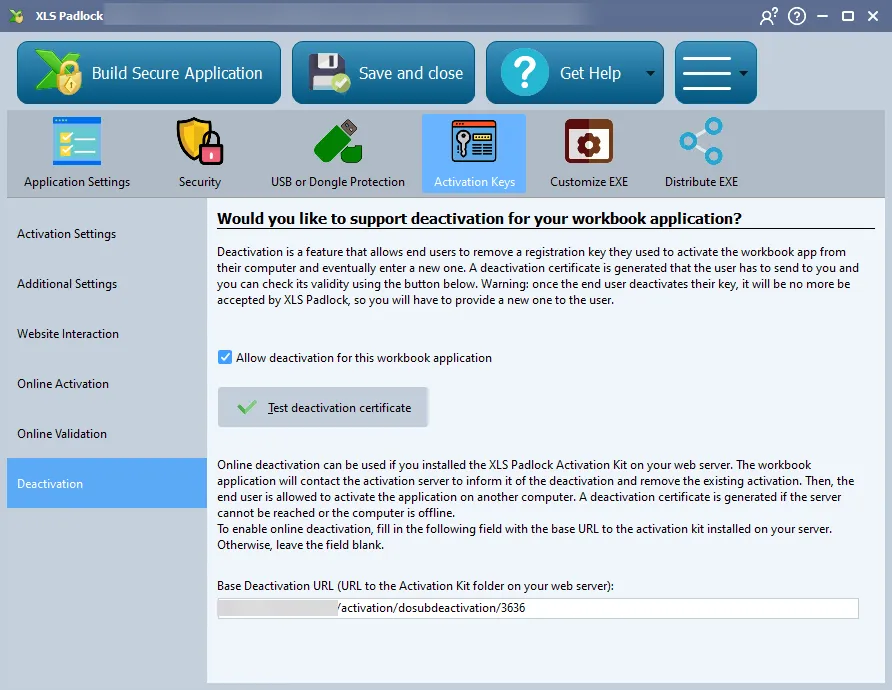
In the Base Deactivation URL field, enter the base URL as defined previously (see Base URL for activation) on your web server followed by /dosubdeactivation/{product ID} (a final slash / is not mandatory) and replace {product ID} with the product ID associated to your workbook (and defined in workbooks.json).
In our case, it would be:
https://www.mywebsite.com/wordpress/activation/dosubdeactivation/3636Recompile your workbook EXE with XLS Padlock. That’s all.
When end users want to deactivate (see the XLS Padlock user guide for instructions about how to deactivate a workbook app), the server will be informed and the existing activation stored on it will be removed.
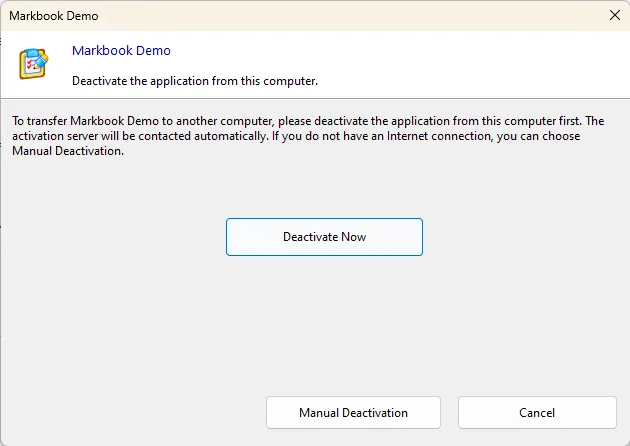
During deactivation, the WooCommerce kit also checks the subscription’s status.
This ensures that only customers with an active subscription can deactivate existing licenses in order to transfer them.
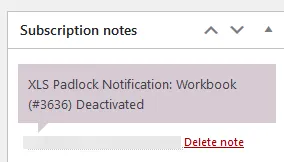
After successful deactivation, a note is also added to the customer’s subscription for your information: