How to Protect an Excel Workbook
1. Open and Save Your Workbook
Section titled “1. Open and Save Your Workbook”Begin by opening the workbook you wish to protect in Excel. Ensure all changes are saved before proceeding.
2. Configure Protection Options
Section titled “2. Configure Protection Options”To begin, open the XLS Padlock interface from the Excel ribbon:
-
Before Excel 2007: Use the “XLS Padlock” menu.
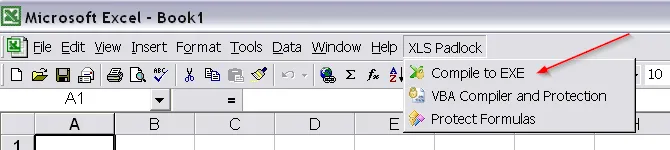
-
Excel 2007 and later: Click “Secure Compile to Exe” in the “XLS Padlock” ribbon tab.

3. Build Your Application
Section titled “3. Build Your Application”After configuring your application’s settings, click the “Build Secure Application” button or press F5. XLS Padlock will compile your workbook and create the application EXE file.

Upon completion, a confirmation message will appear:
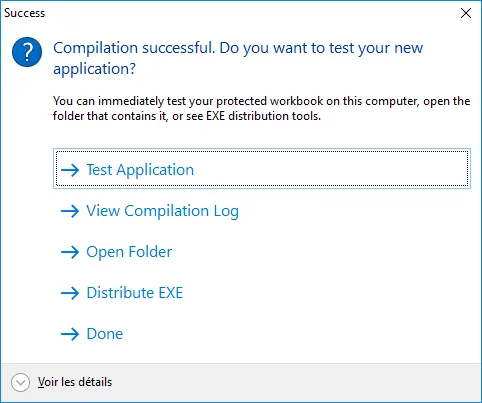
From this dialog, you can immediately run the application, view the compilation log (especially useful for troubleshooting errors), or open the destination folder.
👉 See Also: