Do Not Allow Loading/Saving Other Workbooks (no OLE hack)
One potential vulnerability is that Excel workbooks can be saved to disk using VBA or OLE commands. To prevent this data extraction method, XLS Padlock includes a powerful security option named “Do not allow loading/saving other workbooks”.
When enabled, this feature makes the Excel instance running your application unable to load or save any other workbook file. This effectively blocks users from opening other workbooks and prevents VBA-based hacks that attempt to copy data into a new, unprotected file.
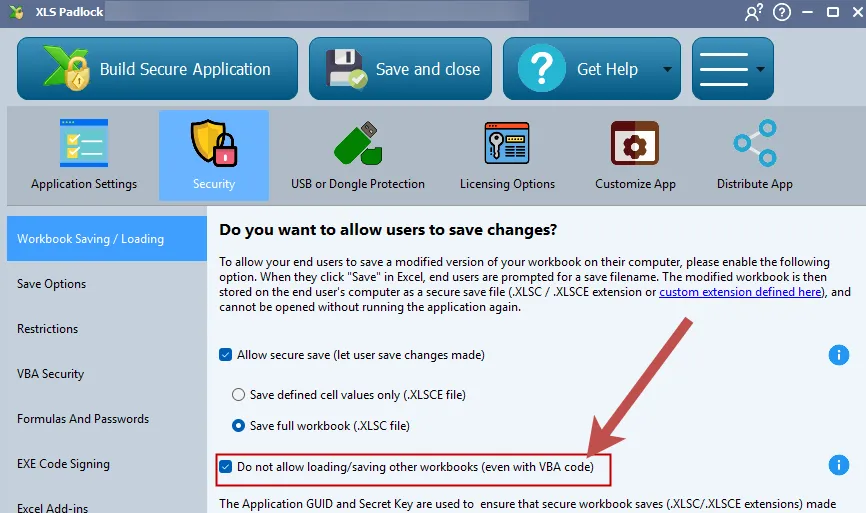
What if My Application Needs to Save Other Workbooks? The SetHelper VBA solution
Section titled “What if My Application Needs to Save Other Workbooks? The SetHelper VBA solution”This security feature also blocks standard VBA code from saving or loading workbooks. If your application legitimately needs to perform these actions, a workaround is available.
You can temporarily disable the restriction within your VBA code. To do this, you must first enable the advanced option “Allow loading/saving other workbooks through VBA SetOption helper” here:
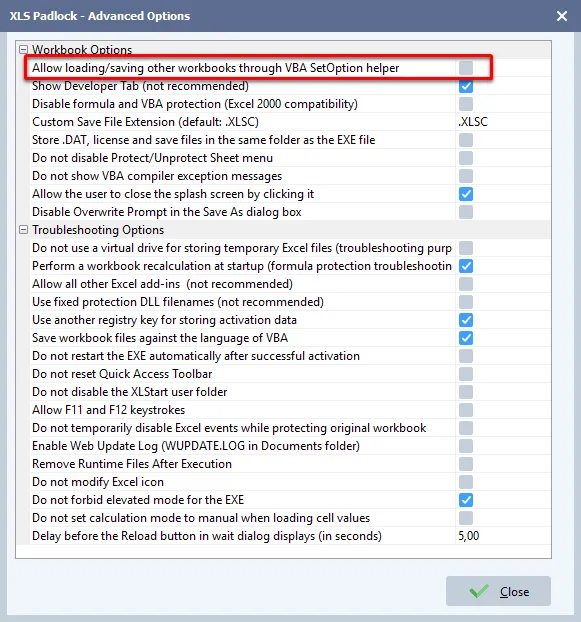
Then, you can use the following VBA code:
Dim XLSPadlock As ObjectSet XLSPadlock = Application.COMAddIns("GXLS.GXLSPLock").Object
' Temporarily disable the securityXLSPadlock.SetOption Option:= "2", Value:= "0"XLSPadlock.SetOption Option:= "1", Value:= "1" ' Required: see the caution below
' Your code to save a normal workbookActiveWorkbook.SaveAs "D:\My Documents\NormalWorkbook.xlsx"
' Re-enable the securityXLSPadlock.SetOption Option:= "2", Value:= "1"XLSPadlock.SetOption Option:= "1", Value:= "0"