Registration Form Editor
The Registration Form Editor lets you customize the text that appears in the online activation dialog box. The editor supports basic HTML, so you can use tags like <b>, <br>, <font>, etc.
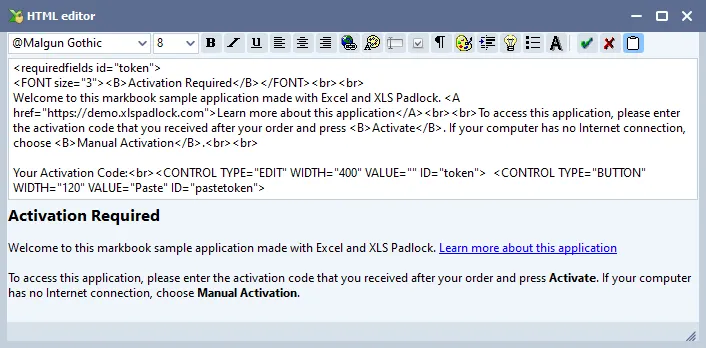
XLS Padlock provides a basic HTML editor with a live preview of the dialog’s text:
Custom Controls
Section titled “Custom Controls”You can add custom fields to request additional information from users, which will be sent to your web server. You can also add a button to paste text into the token field.
- Paste Button:
<CONTROL TYPE="BUTTON" WIDTH="120" VALUE="Paste" ID="pastetoken"> - Text Input:
<CONTROL TYPE="EDIT" WIDTH="400" VALUE="" ID="token">
Required Fields
Section titled “Required Fields”You can make fields mandatory by listing their IDs in a <requiredfields> tag. For example, to require the “token” and “name” fields:
<requiredfields id="token,name">
Full Example
Section titled “Full Example”<requiredfields id="token"><FONT size="3"><B>Activation Required</B></FONT><br><br>Welcome to this application.<br><br>To access this application, please enter the activation code that you received after your order and press <B>Activate</B>. If your computer has no Internet connection, choose <B>Manual Activation</B>.<br><br>Your Activation Code:<br><CONTROL TYPE="EDIT" WIDTH="400" VALUE="" ID="token"> <CONTROL TYPE="BUTTON" WIDTH="120" VALUE="Paste" ID="pastetoken">