Using External References and Hyperlinks
XLS Padlock protects one workbook per EXE file. If your workbook uses external references or requires additional files, you must update your paths to ensure they work correctly after compilation.
XLS Padlock provides two main ways to handle external files:
- Add them as Companion Files.
- Use dynamic paths in hyperlinks or VBA code.
To manage dynamic paths, XLS Padlock offers a function called PLEvalVar that can be used directly in Excel formulas or called from VBA.
This function takes one string argument:
- =PLEvalVar(“EXEPath”) returns the full path to the folder that contains the application EXE file (and trailing backslash).
- =PLEvalVar(“XLSPath”) returns the full path to the folder that contains the compiled workbook at runtime (and trailing backslash).
Example 1
Section titled “Example 1”You have hyperlinks to external image files. These image files are in the same folder as the workbook XLS file (or in a sub folder).
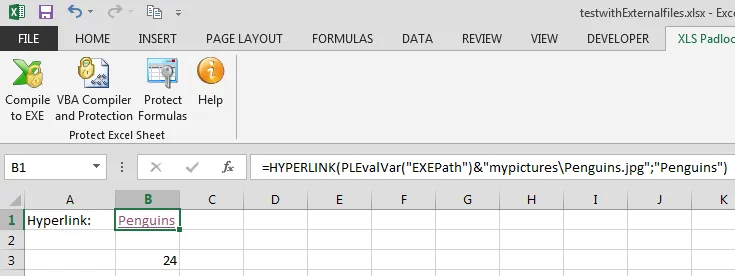
You have a hyperlink in a cell which is defined by:
=HYPERLINK("Penguins.jpg","Penguins")
To make it working with XLS Padlock, you must copy all external image files in the same folder as the EXE file built with XLS Padlock. Then, you have to modify all hyperlinks to insert the PLEvalVar(“EXEPath”) function that returns the path to that folder.
In our case, this will become:
=HYPERLINK(PLEvalVar("EXEPath") & "Penguins.jpg", "Penguins")
This also works for files in subfolders. A link like:
=HYPERLINK("My Pictures\\Penguins.jpg", "Penguins")
…should be changed to:
=HYPERLINK(PLEvalVar("EXEPath") & "mypictures\\Penguins.jpg", "Penguins")
Example 2
Section titled “Example 2”To access external files with VBA, you can use a helper function that constructs the full path to a file located in the same folder as the EXE.
👉 For a detailed explanation and a reusable code snippet, see the guide on how to get the path to a file in the EXE’s folder.
Public Function GetPathToFileInEXEFolder(ByVal Filename As String) As String    Dim XLSPadlock As Object    Dim exePath As String
    Set XLSPadlock = Application.COMAddIns("GXLSForm.GXLSFormula").Object    exePath = XLSPadlock.PLEvalVar("EXEPath")
    If exePath = "" Then        GetPathToFileInEXEFolder = ""        Exit Function    End If
    ' PLEvalVar("EXEPath") already ends with a backslash, but do not rely on it    If Right$(exePath, 1) <> "\" Then exePath = exePath & "\"
    GetPathToFileInEXEFolder = exePath & FilenameEnd Function