How to Add Companion Files
If your workbook is linked to other workbooks or data sources, you can add these as “companion files.” This bundles them directly into the main application EXE, making distribution easier. When the application runs, these files are made available in the same virtual folder as the main workbook.
You can even include XLL add-ins.
For example, if your workbook uses an external text file as a data source, adding it as a companion file ensures it will always be found when the compiled workbook is opened on any computer.
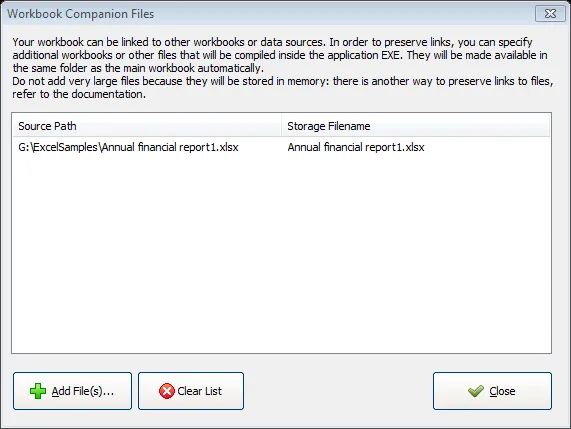
To add files, click Add Files and select them. They will appear in the list. The “Storage Filename” column shows the filename that will be used when the file is compiled into the EXE and restored at runtime.
Accessing Companion Files with VBA
Section titled “Accessing Companion Files with VBA”To access companion files with VBA, you can use the following function:
Public Function PathToCompiledFile(Filename As String) As String    Dim XLSPadlock As Object    On Error GoTo Err
    Set XLSPadlock = Application.COMAddIns("GXLSForm.GXLSFormula").Object    PathToCompiledFile = XLSPadlock.PLEvalVar("XLSPath") & Filename
    Exit FunctionErr:    PathToCompiledFile = ""End Function
You can then use this function to open a companion file:
Sub ExampleUsage()    Dim wk As Workbook    Dim filePath As String
    filePath = PathToCompiledFile("Test File.xlsx")    If filePath <> "" Then        Set wk = Workbooks.Open(filePath, False, False)        MsgBox wk.Sheets(1).Cells(1, 1).Value        wk.Close    Else        MsgBox "Companion file not found!"    End IfEnd Sub