How to Set Up Automatic Web Updates
XLS Padlock includes a Web Update feature that can automatically download and install new versions of your application. This allows your end-users to easily upgrade your workbook app whenever you release a new version.
No third-party software is required, but you must have a web server or web hosting space to host the update files.
How the Web Update Works
Section titled “How the Web Update Works”The application first downloads a small control file (.inf) from your server. This file tells the application if a new version is available. If there is, the application downloads the necessary update files (.cab), closes itself, installs the update, and restarts.
Authenticated Updates
Section titled “Authenticated Updates”Starting with XLS Padlock 2026.3, Web Update is authenticated. The first time you protect a project that uses Web Update, XLS Padlock creates a signing key unique to that project and displays a notice. The key is stored in your project file, which XLS Padlock saves right after that first successful protection. Every control file (.inf) generated from then on is signed with this key and lists a SHA-256 fingerprint of each update file.
Applications compiled with XLS Padlock 2026.3 or later check both before installing anything. They refuse a control file that is unsigned, signed with another key, or modified in any way, and they refuse a downloaded file whose fingerprint does not match. A compromised or spoofed update server, or a file altered in transit, can therefore no longer push its own code to your end users. Applications compiled with earlier versions of XLS Padlock are not affected and keep using the previous mechanism.
Three rules follow from this:
- Protect first, then generate. Click Protect before Generate Web Update Files. If the compiled application does not carry the project’s current signing key, XLS Padlock asks you to protect (compile) the workbook again instead of generating the files.
- Upload the generated files unchanged. Any edit to the control file invalidates its signature. A text-mode FTP transfer that only rewrites line endings is tolerated.
- Release every update from the same project file. Restoring settings from a template keeps the project’s own signing key.
When a check fails, nothing is installed. The update wizard reports that it cannot connect and that no update is available. If the end user started the update with the -webupdate command line switch, the application displays “The update information could not be verified, so no update was installed. Please contact the publisher of this application.” A downloaded file whose fingerprint does not match is reported as a failed download.
Checking for Updates
Section titled “Checking for Updates”You can configure your application to automatically check for updates at startup or add a “Check for Updates” button to the welcome screen. When a new version is detected, users are guided through a Web Update wizard. The wizard is displayed in the language selected on the Localization page of your project (XLS Padlock 2026.2 or later; earlier releases showed it in English), using the translations already embedded in your application.
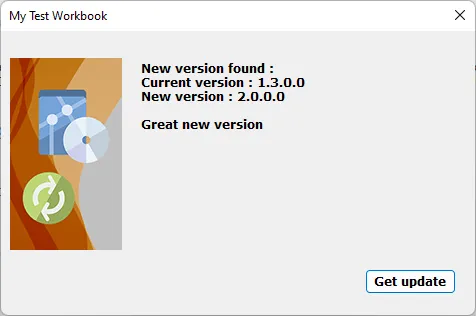
Users can also initiate an update via the command line switch -webupdate.
How a New Version is Detected
Section titled “How a New Version is Detected”The File Version number, specified in the EXE Version Info page of XLS Padlock, is used to determine whether an update is necessary. You must increase this version number every time you release an update.
Configuration
Section titled “Configuration”- Base URL: The URL on your web server where the Web Update files will be hosted (e.g.,
https://www.yourwebsite.com/myfolder). HTTPS is recommended. - Web Update INF Control Filename: The name of the control file that contains update information.
- Local Destination Folder: A local folder on your computer where XLS Padlock will generate the update files. You must then upload the entire contents of this folder to your web server.
- “What’s new” text (optional): Text to display in the update wizard, informing users about the changes in the new version.
Generating Web Update Files
Section titled “Generating Web Update Files”Clicking Generate Web Update Files in XLS Padlock will create the necessary files (a .inf control file and a .cab compressed file) in your specified local folder. You can then upload these files to your web server.
Protect the workbook first: the update files are built from the compiled application, which must carry the project’s current signing key (see Authenticated Updates).
Troubleshooting
Section titled “Troubleshooting”To troubleshoot the web update feature, enable the “Enable WebUpdate Log” option in Advanced Options. This will create a WUPDATE.LOG file in the user’s Documents directory with detailed information about the update process.
If an application compiled with XLS Padlock 2026.3 or later reports that no update is available although you uploaded a new version, first check that the files on your server are exactly the ones XLS Padlock generated (no edit, no partial upload), and that you generated them after protecting the workbook with the same project file.