Introduction to XLS Padlock
XLS Padlock turns your Excel workbooks into protected Windows applications. Hide sensitive formulas and VBA code, choose who can open your workbook, and customize the application you distribute. Your users continue working with Microsoft Excel.
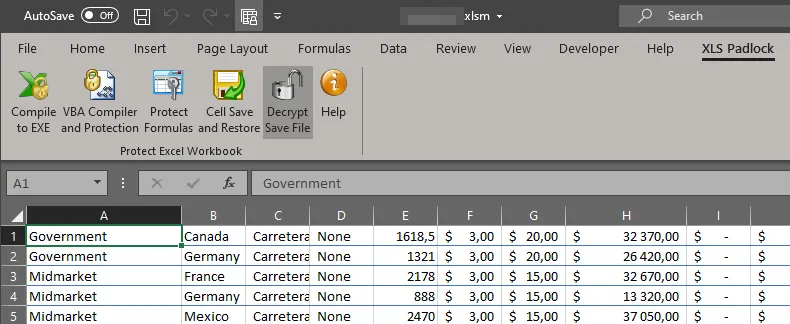
Open XLS Padlock directly from the Excel ribbon.
How XLS Padlock works
Section titled “How XLS Padlock works”-
Open your workbook in Excel. Save your changes before opening XLS Padlock.
-
Choose your protection and licensing options. Configure the settings that suit your workbook and its users.
-
Build your protected application. Compile the workbook into a Windows executable, then prepare it for distribution.
Choose your protection
Section titled “Choose your protection”Protect your formulas. Let users calculate with your formulas while preventing them from viewing or copying the formula logic. Choose which cells to protect.
Compile sensitive VBA. The integrated compiler transforms selected VBA code into secure bytecode and removes its readable source from the distributed workbook. You can also lock the VBA project and block access to the editor.
Explore formula protection and VBA code protection.
Control which Excel commands are available in your protected application:
- Worksheet context menus (right-click)
- Copy and paste
- The formula bar
- Saving and printing
- Access to the VBA project
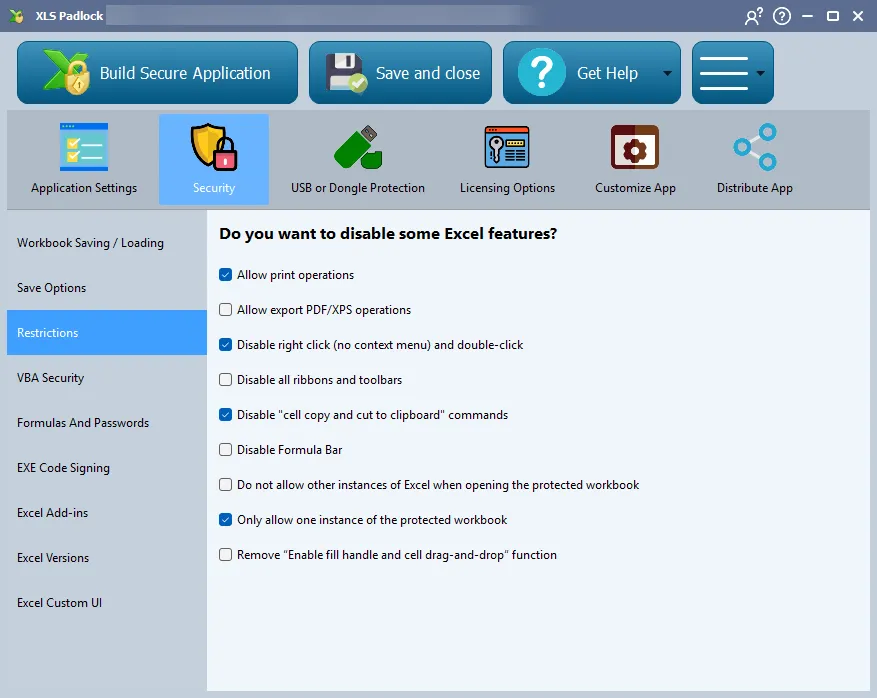
See Excel workbook restrictions for the available settings.
Choose who can open your workbook. Issue hardware-locked activation keys, or bind an application to a USB stick or security dongle.
Offer a trial. Set a limit in days, a maximum number of uses, or a fixed expiry date, with a customizable trial screen.
Manage activation online. Automate licensing and control access remotely with online activation.
Customize and distribute
Section titled “Customize and distribute”- Make it your own. Add a custom icon, copyright information and a splash screen. Display a license agreement and translate the user interface. See Customize the application.
- Prepare for delivery. Digitally sign your application with Authenticode and create an installer. See Code signing and Creating an installer.
- Keep users up to date. Notify them of new versions with automatic Web Update.
Compatibility
Section titled “Compatibility”Get started
Section titled “Get started”See what’s new or visit the XLS Padlock website.