XLS Padlock FastSpring Subscription Kit
Online activation and validation features of XLS Padlock let you control user access to your Excel workbooks remotely. For instance, you can sell subscriptions for your Excel spreadsheets and block access of customers if their subscription expired for non payment.
To manage subscriptions, we chose FastSpring, an ecommerce partner of choice for selling software online. This FS subscription kit requires an active FastSpring account.
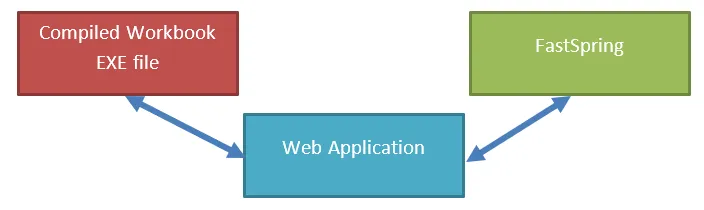
The workbook applications compiled with XLS Padlock can communicate with a web application powered by this subscription kit. The application uses FastSpring API to manage customer settings and subscription data.
The following guide contains instructions to set up the web application on your server and link it to your Excel workbooks. After that, online activation and optionally validation will be functional. You will be able to manage access of your customers directly from the FastSpring Dashboard.
Starting with XLS Padlock 2026, the kit supports a new signed activation protocol (JSON exchanges with Ed25519 response signing), detected automatically on each request and backward-compatible with workbooks packed by earlier versions. See The 2026 activation protocol for what changes and how to enable it.
Get started
Section titled “Get started”- Verify your server meets the Server requirements.
- Step 1: obtain FastSpring API credentials from your FastSpring account.
- Copy the files to your server, then set the Base URL for activation and Set up local encryption key.
- Edit Step 3: configure config.ini with your XLS Padlock user ID and FastSpring API credentials.
- Step 4: associate your compiled workbook EXE files, Step 5: configure the Excel workbook for subscriptions, and Step 6: let FastSpring generate activation tokens.
Topics
Section titled “Topics”Installation
Section titled “Installation”- Server requirements
- The 2026 activation protocol
- Step 1: obtain FastSpring API credentials
- Copy the files to your server
- Base URL for activation
- Set up local encryption key
- Step 3: configure config.ini
Subscriptions
Section titled “Subscriptions”- Step 4: associate your compiled workbook EXE files
- Step 5: configure the Excel workbook for subscriptions
- Step 6: let FastSpring generate activation tokens
- Description of the activation process
- Description of the validation process
- Setting up deactivation