How to Change an EXE File's Icon in Windows
To change an EXE file’s icon: if you are compiling an Excel workbook, set a custom .ico file in XLS Padlock before you build. To change the icon of an EXE that already exists, use the free GConvert utility, which rewrites the icon stored inside any EXE, DLL, or OCX.
When you compile an Excel workbook into an EXE, XLS Padlock lets you replace the default application icon with your own. To customize your application’s appearance, specify the path to a custom icon file, which must have a .ico extension:
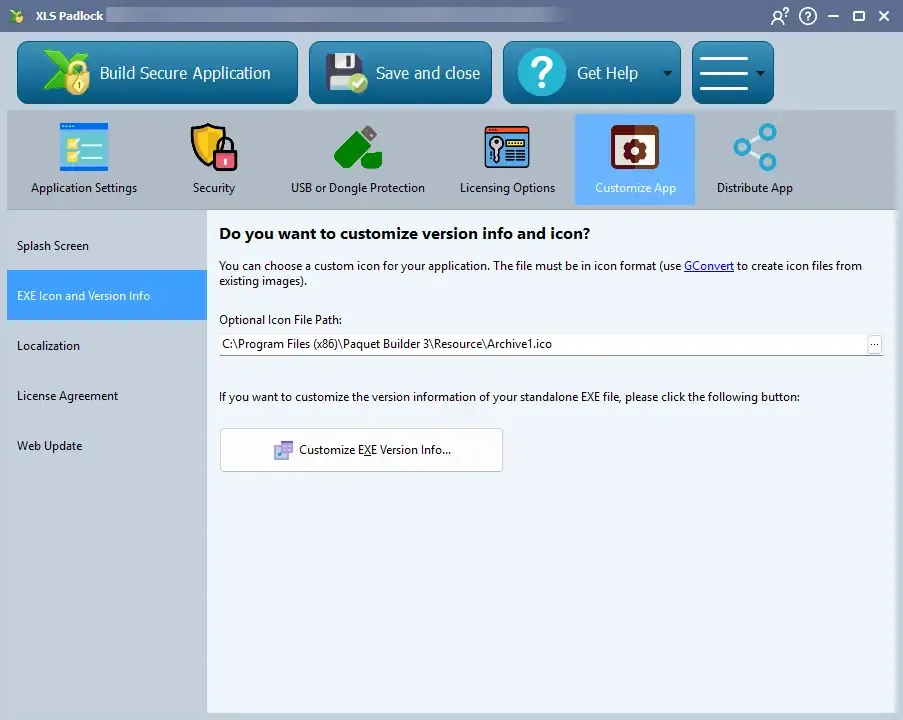
XLS Padlock supports standard icon formats, including various sizes (e.g., 32x32, 48x48) and color depths. If you need a tool to create or extract icons, we recommend our companion utility, GConvert, which can easily convert images into icons.
Change the icon of an existing EXE file
Section titled “Change the icon of an existing EXE file”Do you need to change the icon of an EXE that is already built, not an application you are compiling with XLS Padlock? Use our dedicated icon utility, GConvert. Its Modify Icons in EXE/DLL tool opens a 32-bit Windows executable (EXE, DLL, or OCX), lists the icons stored inside it, and replaces the one you select with an icon from your own .ico file. GConvert writes the executable back in place and keeps an automatic backup, so the program shows its new icon everywhere in Windows.
Download GConvert or follow the step-by-step guide to modifying the icons in an EXE file.