How to Manage Excel Add-ins
By default, XLS Padlock disables most Excel add-ins when a secured workbook is loaded. This is a security measure to create a controlled environment for your application.
However, if your workbook relies on specific add-ins to function correctly, you can selectively re-enable them. This page explains how to allow both COM add-ins and common built-in Excel add-ins.
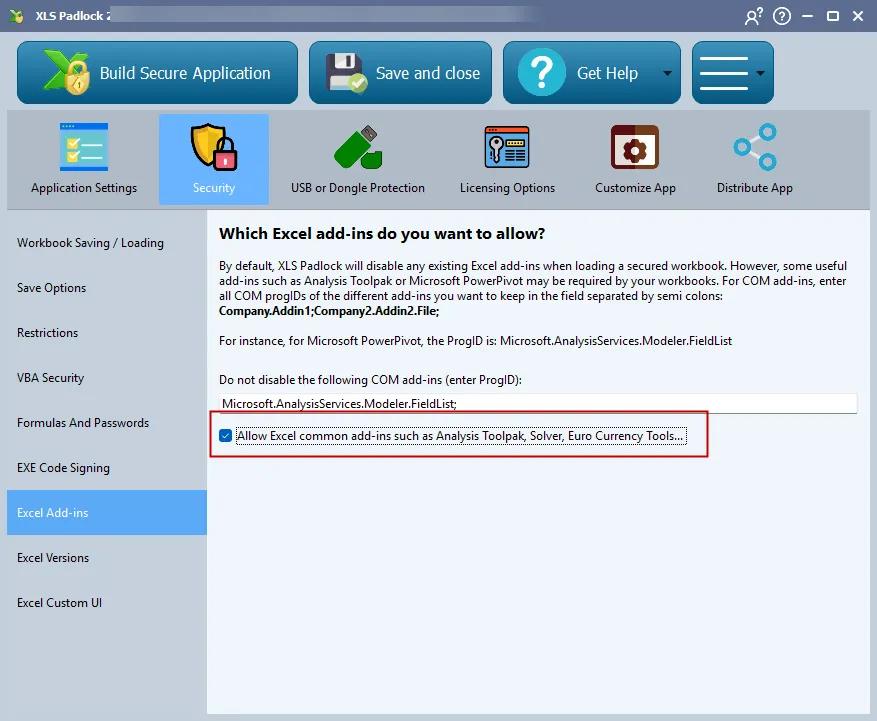
Keeping Specific COM Add-ins Enabled
Section titled “Keeping Specific COM Add-ins Enabled”If your workbook requires a COM add-in (like Microsoft PowerPivot), you must specify its ProgID to prevent XLS Padlock from disabling it.
In the “Do not disable the following COM add-ins” field, enter the ProgID for each add-in you wish to keep enabled. If you have more than one, separate them with semicolons (;).
Example: To keep Microsoft PowerPivot enabled, you would enter its ProgIDs: Microsoft.AnalysisServices.Modeler.FieldList;PowerPivotExcelClientAddIn.NativeEntry.1
Allowing Common Excel Add-ins
Section titled “Allowing Common Excel Add-ins”Excel also includes several popular built-in add-ins, such as the Analysis ToolPak, Solver, and Euro Currency Tools.
If your workbook uses features from any of these, enable the option “Allow Excel common add-ins…”. This will ensure they are loaded and available when your protected application starts.