Configure Advanced Options
In “Application Settings”, click the “Configure Advanced Options” button to display the following window:
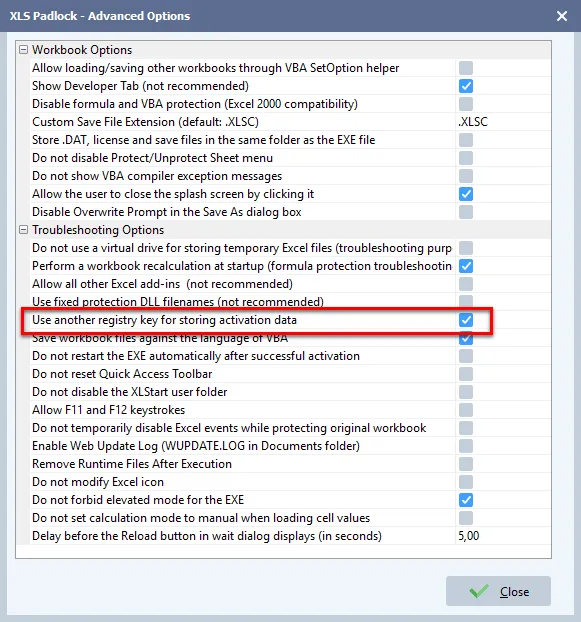
Available Advanced Options
Section titled “Available Advanced Options”- Allow loading/saving other workbooks through VBA SetOption helper: A security bypass for specific VBA operations. See Loading/Saving workbooks through VBA SetOption helper.
- Show Developer Tab: Makes the Excel Developer tab visible (not recommended for security).
- Disable formula and VBA protection: For compatibility with Excel 2000.
- Custom Save File Extension: Change the default
.XLSCextension for save files. - Store .DAT, license and save files in the same folder as the EXE file: Enables portable mode.
- Do not disable Protect/Unprotect Sheet menu: Keeps the sheet protection menu items enabled.
- Do not show VBA compiler exception messages: Hides detailed error messages from the VBA compiler. See Disable debug information.
- Allow the user to close the splash screen by clicking it: Lets users skip the splash screen.
- Disable Overwrite Prompt in the Save As dialog box: Prevents the “do you want to overwrite?” message.
- Do not use a virtual drive for storing temporary Excel files: For troubleshooting purposes.
- Perform a workbook recalculation at startup: For troubleshooting formula protection.
- Allow all other Excel add-ins: Lowers security by enabling all add-ins (not recommended).
- Use fixed protection DLL filenames: Not recommended for security.
- Use another registry key for storing activation data: A workaround for registry conflicts.
- Save workbook files against the language of VBA: Resolves some localization issues.
- Do not restart the EXE automatically after successful activation: Prevents the automatic restart.
- Do not reset Quick Access Toolbar: Preserves user customizations to the QAT.
- Do not disable the XLStart user folder: Allows add-ins in the user’s XLStart folder to run.
- Allow F11 and F12 keystrokes: Enables these function keys.
- Do not temporarily disable Excel events while protecting original workbook: For troubleshooting.
- Enable Web Update Log: Creates a
WUPDATE.LOGfile in the user’s Documents folder for debugging the web update feature. - Remove Runtime Files After Execution: Cleans up temporary files.
- Do not modify Excel icon: Prevents XLS Padlock from altering the Excel window icon.
- Do not forbid elevated mode for the EXE: Allows the application to run as an administrator.
- Do not set calculation mode to manual when loading cell values: For troubleshooting.
- Delay before the Reload button in wait dialog displays (in seconds): Customizes the wait dialog.