How Online Activation Works
How It Works
Section titled “How It Works”Online activation automates the retrieval of activation keys over the internet. The protected application communicates with your web server to download an activation key directly, eliminating the need for users to enter it manually.
If you opt into the 2026 activation protocol (Ed25519 response signing, see below), make sure your kit is the 2026.0 version or later. The kit auto-detects the protocol per request, so legacy workbooks keep working with the same kit installation.
👉 When an end-user starts the application, a dialog box appears prompting them for activation. This dialog replaces the standard “Enter Activation Key” dialog box and is fully customizable. You can add your own fields to collect data from the user (like an order number or email address), which will be sent to your web server. Your server then validates this information and, if successful, sends an activation key back to the application.
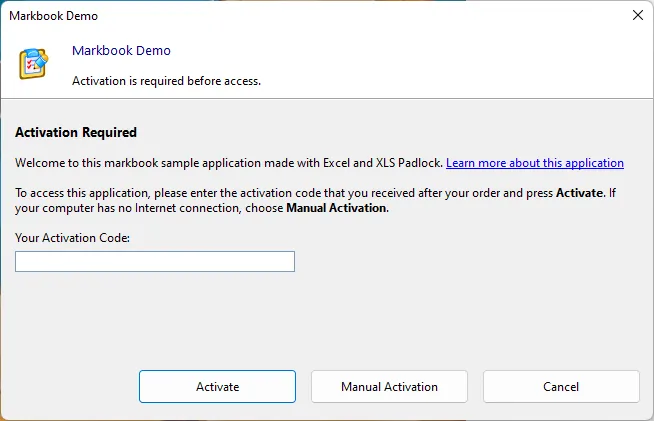
When the user clicks Activate, data is sent to the activation server:
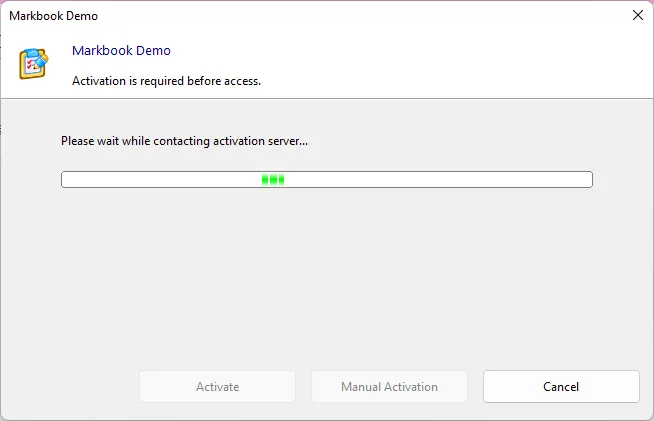
After a successful activation, a confirmation message is displayed, and the application restarts. If an error occurs, a message box will appear, allowing the user to try again.
Configuration
Section titled “Configuration”👉 To enable online activation, you must configure the following options:
Base Activation URL
Section titled “Base Activation URL”Provide the full URL to the activation kit installed on your server. For instance, if you installed the kit in a subfolder named “activation”, the URL would be https://www.yourdomain.com/activation/getactivation/.
⚠️ Leave the field blank if you do not want to use online activation.
Network Timeouts
Section titled “Network Timeouts”Applications compiled with XLS Padlock 2026.3 or later use explicit network timeouts for activation, validation and deactivation: 10 seconds to connect, 15 seconds to send the request and 30 seconds to receive the answer. A stalled network therefore no longer keeps end users waiting. Connections accept TLS 1.2 and TLS 1.3, and an unexpected answer (for example a hosting provider’s error page) is reported with a clear generic message, never displayed as is.
Customer Identification: Security Key or Ed25519 Keypair
Section titled “Customer Identification: Security Key or Ed25519 Keypair”Starting with XLS Padlock 2026.0, you can choose between two activation protocol regimes via the Compatibility mode for pre-2026 activation kits option:
-
Compatibility mode checked (default, recommended if your activation server is older than the 2026 release): the legacy Security Private Key GUID field identifies your application to the activation kit. The protocol is line-based with unsigned responses. This is the behavior of all XLS Padlock versions before 2026.0.
-
Compatibility mode unchecked (requires the 2026 version of the XLS Padlock Activation Kit, WooCommerce Integration Kit, or FastSpring Subscription Kit): the legacy field is hidden and a per-project Ed25519 keypair takes over. Click the Generate keypair button on the Online Activation page to produce a fresh keypair. The public key is embedded in the protected workbook; the private key is shown to you in a one-shot dialog so you can paste it into your activation kit configuration (
xlspadlocksignkeyinconfig.ini).
If you lose the private key, click Show config.ini snippet on the same page to re-display it. The key is persisted in your .xplp project file. Treat the .xplp as sensitive: do not commit it to version control, do not email it for support.
The 2026 protocol uses a JSON request envelope and verifies a detached Ed25519 signature on every response from the activation server. This protects your customers against fake “activated” responses or phishing error messages that a network-level attacker could otherwise inject by bypassing TLS (corporate proxy with CA injection, malicious antivirus, compromised root certificate).
Allow Manual Activation if No Internet Connection
Section titled “Allow Manual Activation if No Internet Connection”Some users may not have an active internet connection. To allow them to activate manually, enable the “Allow Manual Activation if No Internet Connection” option.
This manual method works just like standard registration keys. In this case, you must be prepared to handle activation requests from users who are offline.