Online Validation
Online validation provides remote control over your activated applications. When used with one of our server-side activation kits (such as the XLS Padlock Activation Kit, WooCommerce Kit, or FastSpring subscription kit), your application can periodically check with your server to ensure its activation remains valid.
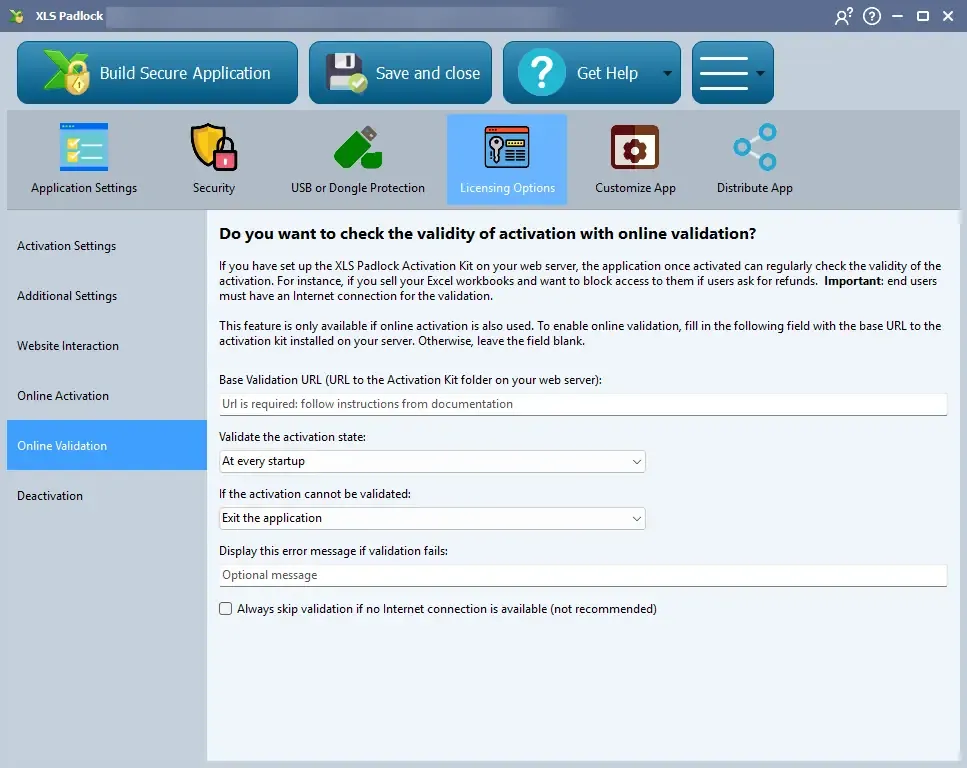
This is useful in several scenarios:
- You can remotely disable an application if a customer requests a refund.
- You can enforce subscription-based access, where the application stops working if a subscription expires.
How it Works
Section titled “How it Works”- Online validation uses the same unique token that was generated during the initial online activation to identify the customer’s device.
- The activation key itself is never sent over the internet during validation.
- An active internet connection is required for the validation check to occur.
Configuration
Section titled “Configuration”👉 You must configure the Base Validation URL to point to your server-side validation script. This is typically the URL for the XLS Padlock Activation Kit, the XLS Padlock WooCommerce Integration Kit, or the FastSpring subscription kit on your web server. For instance, if you installed the activation kit in a subfolder named “activation”, the URL would be https://www.yourdomain.com/activation/dovalidation/.
⚠️ Leave the field blank if you do not want to use online validation.
Validation Frequency
Section titled “Validation Frequency”Choose when the application should perform a validation: at every startup, randomly, every X days, or every X executions. You must specify the value for X where required.
With the random frequency, an application compiled with XLS Padlock 2026.3 or later validates at every launch after a failed check, until one succeeds, then resumes the random spacing.
Action on Validation Failure
Section titled “Action on Validation Failure”Define what the application should do if online validation fails:
- Exit the application: The application will close immediately.
- Blacklist activation key: The current key will be invalidated, and the user will be prompted to enter a new one. If the user re-enters the same key, validation will be attempted again.
- Do nothing: The application will continue to run. You can use XLS Padlock’s VBA extensions to check the validation status and implement custom logic.
If the activation cannot be validated
Section titled “If the activation cannot be validated”You can display a custom error message to the user if validation fails, instructing them on what to do next.
When the license server could not give a reliable answer, applications compiled with XLS Padlock 2026.3 or later display this message instead: “The license server could not be reached or returned an invalid response. Please check your Internet connection and try again later.” The raw content of an unexpected server response is never shown to end users.
Skip Validation if Offline
Section titled “Skip Validation if Offline”You can allow the application to skip the validation check if no internet connection is detected. This is generally not recommended for security reasons.
VBA: Retrieve Subscription/License Info
Section titled “VBA: Retrieve Subscription/License Info”After a successful online validation, you can retrieve custom data sent from your server using the XLSPadlock.PLEvalVar("ValidationAddServerData") VBA call. This is useful for passing down subscription-specific information to the workbook.