How to Protect Formulas in Cells
To protect a formula, simply right-click on one or more cells containing the formulas you want to hide and select “Protect selected cell(s) with XLS Padlock” from the context menu.
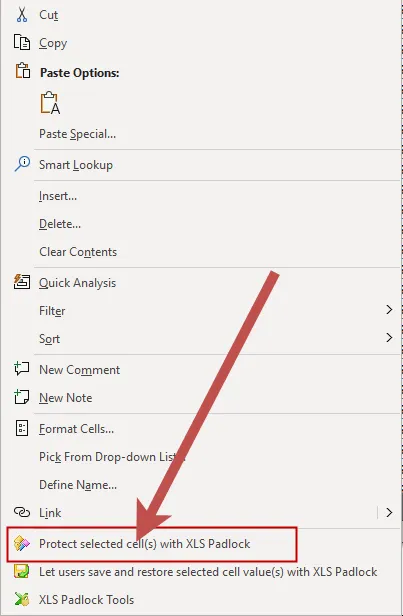
XLS Padlock will then confirm that the cells are marked for protection.
Overview of Protected Cells
Section titled “Overview of Protected Cells”To see an overview of all protected cells, click “Protect Formulas” in the XLS Padlock tab or menu:

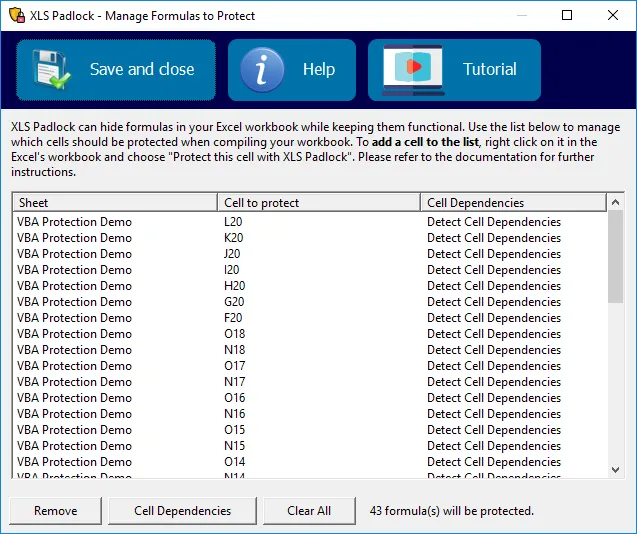
This opens a list of all cells configured for protection. In this window, you can adjust protection behavior, remove protection from specific cells, or clear the entire list.
When you compile your workbook, XLS Padlock replaces all listed formulas with generic function calls like PLEvalForm(N) and PLEvalFormD(N, ….). Your cells remain functional, but end-users cannot discover the underlying formulas. The original formulas no longer exist in the compiled workbook; they are managed by the EXE itself.
Cell Dependencies
Section titled “Cell Dependencies”By default, XLS Padlock detects all cell references and named ranges in each formula to protect (its cell dependencies) and generates an anonymous function that carries these references, so that Excel recalculates protected cells in the right order. For instance, if the formula to protect is =A3^2, XLS Padlock generates a function like PLEvalFormD(1, COUNT(A3)). Function names, worksheet names in cross-sheet references, table names and quoted text are not mistaken for cell references. A formula that references no cell at all (for example =100*1.2) is replaced with the simpler PLEvalForm(N) form.
The Cell Dependencies button lets you change this behavior for the selected cells. Two choices are available: “Detect Cell Dependencies” (the default) and “No Dependency”. Choose “No Dependency” only when you deliberately do not want XLS Padlock to declare a formula’s dependencies, for instance when a cell fails to protect: a simple generic PLEvalForm(N) function is then used, and Excel no longer knows which cells the formula depends on. The choice is saved with the cell list and survives a change of the interface language.
👉 See also