Using WooCommerce custom fields (subscription)
For a given subscription, you can manage activations by editing its parent order: in the Related Orders section, the Parent Order is indicated:
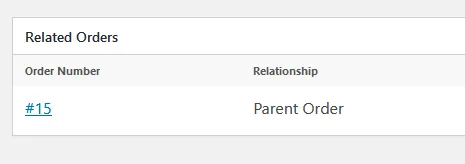
Click the Order Number to manage activations of a given subscription.
When the customer activates the compiled workbook EXE, the web application modifies the WooCommerce order by adding a custom field named xlspadlock_activations: or xlspadlock_activations_{productId} for subscriptions, depending on the product:
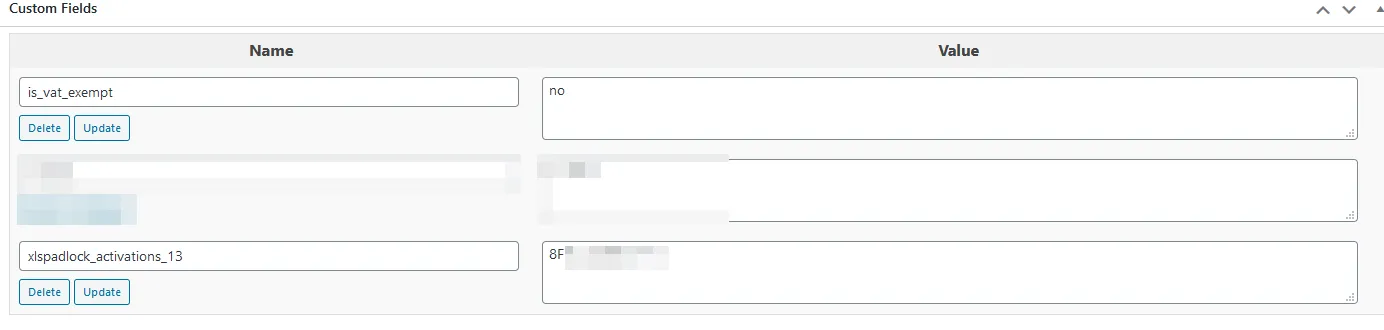
The value of the xlspadlock_activations custom field contains a list of system IDs. These unique system IDs represent the computers on which the customer has activated the compiled workbook EXE. System IDs are separated by the | character.
For instance, “CD78-4563-3F2B|HC78-1243-EF74” indicates that the compiled workbook EXE was activated on two different computers. If you configured the web application to allow only 2 activations, next time an error will be triggered (no more activations left).
You can manually clear existing activations by removing the corresponding system ID. However, it is recommended to offer a deactivation option to customers so they can transfer their license to new computers without manual intervention.
Custom Fields for License Expiration and Usage Management
Section titled “Custom Fields for License Expiration and Usage Management”The server can manage expiration and usage limits to prevent unauthorized usage. Here are the fields and their functionalities:
- Server-Side Expiration Control: If `use_server_expiration` is enabled in config.ini, the server will automatically control license expiration to prevent local modification.
- Maximum Days Expiration (`xlspadlock_expiration_{productId}_{systid}`): This field is created if there is a defined maximum validity duration (`variationMaxDays`) from the activation date. The expiration date is set based on this duration and is checked each time an activation request is made.
- If expired, the server blocks activation and shows the error: “Your license for this activation has expired. Cannot activate.”
- Fixed Expiration Date (`variationExpireDate`): If a fixed expiration date is set, it is stored in this field, and each activation request checks if it has passed.
- If expired, the activation is denied with the error: “Your license has expired. Cannot activate.”
- Maximum Runs Limit (`xlspadlock_runs_{productId}_{systid}`): This field tracks the allowed remaining activations for licenses limited by usage count.
- Initially set to the total allowed runs (`variationMaxRuns`), this counter decreases each time the workbook is activated.
- When the counter reaches zero, activation is denied with the message: “You have reached the maximum number of allowed runs. Cannot activate.”
- Maximum Days Expiration (`xlspadlock_expiration_{productId}_{systid}`): This field is created if there is a defined maximum validity duration (`variationMaxDays`) from the activation date. The expiration date is set based on this duration and is checked each time an activation request is made.
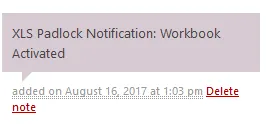
Note: each time the customer activates the compiled workbook EXE file, a note is added to the WooCommerce order, as you can see here: