Hardware-Based Protection Options (Dongles & USB)
With XLS Padlock, you can lock your Excel workbooks to a USB stick or a dedicated security dongle. This means that the compiled workbook application will not work if the correct USB device is not inserted. The application will check for the device’s presence at startup and can also check for it regularly during execution.
To use this protection, check the option “Link the application to a dongle or a USB stick” on the “USB Protection” page and select the device model you have.
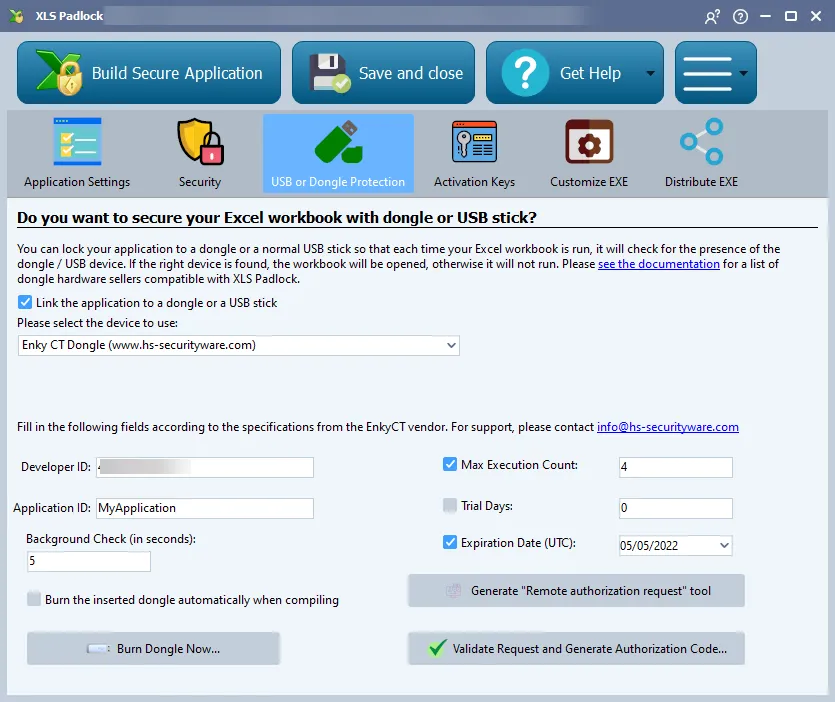
XLS Padlock supports several types of hardware-based protection to lock your Excel application to a physical device.
Enky CT Dongle
Section titled “Enky CT Dongle”According to the provider, Enky CT is an easy-to-use, flexible 32-bit smart-card based time clock dongle, mainly used for software protection and time limitation.
For support, please contact [email protected] or visit https://hs-securityware.com.
How to use the Enky CT dongle
Section titled “How to use the Enky CT dongle”Enter the Developer ID provided by HS Securityware (it is case-sensitive).
Application ID can be any value you want to identify the dongle, and it should be related to the application you are creating.
Every Enky CT dongle supplied for XLS Padlock by HS Securityware carries a signature in its memory. XLS Padlock 2026.3 or later checks it before configuring the dongle and refuses a dongle without a valid signature with the message “Mismatch data detected in the dongle’s memory page. Cannot continue.” Dongles supplied for XLS Padlock, including those programmed years ago, are accepted as before.
Background Check
The application checks for the dongle’s presence at startup and can also check for it regularly during runtime. You can define the frequency of these checks; for example, a value of 20 means the application will check for the dongle every 20 seconds. If the dongle is not found, a nag screen appears, requiring the user to insert the dongle within 15 seconds, or the application will exit.
Set restrictions on the application
You can limit the number of times your application can be run by setting a Max Execution Count. You can also make your application expire after a given number of days (Trial Days) or on a specific Expiration Date.
When one of these limits is reached, an application compiled with XLS Padlock 2026.3 or later refuses to start and displays “Your dongle’s license has expired. Cannot continue.” It also refuses to start whenever the dongle cannot be opened or read.
Remote Dongle Update Features
Section titled “Remote Dongle Update Features”This dongle model allows you to remotely upgrade dongles that are already with your customers. For instance, you can extend an expiration date or add more runs. This remote update feature is based on a request-and-authorization code system.
How to remotely update a customer’s dongle:
-
First, generate the “remote authorization request tool” from XLS Padlock and send the resulting EXE and DAT files to your customer.
Warning
These two files (
.EXEand.DAT) must remain in the same folder for the tool to work. -
The customer runs the tool to generate a request code, which they send to you.
-
In XLS Padlock, choose “Validate Request and Generate Authorization Code”, paste the request code, and click “Validate Request Code”. You can then see the current status of the dongle and set new limits (usage count or a new expiration date).
-
Generate the authorization code and send it back to the customer. They will use the same tool to enter the code and apply the update to their dongle.
Enky LC Dongle
Section titled “Enky LC Dongle”For support, please contact [email protected] or visit https://hs-securityware.com.
The Enky LC is a cost-effective, driverless HID dongle for software protection.
How to use the Enky LC2 dongle
Section titled “How to use the Enky LC2 dongle”- Enter the Developer ID you received from HS-Security Ware.
- Enter a unique Product ID for your workbook. This ensures that only dongles with the correct Product ID will be accepted.
Steps to configure an Enky LC2 dongle
Section titled “Steps to configure an Enky LC2 dongle”To link a dongle to your application, you must first “burn” it using the “Burn Dongle Now” button in XLS Padlock. This configures the dongle with your IDs. This process can also happen automatically when you compile your application if a compatible dongle is plugged in.
Background Check
Section titled “Background Check”You can enable a background check to ensure the dongle remains plugged in while the application is running. You can set the interval (in seconds) for how often the check is performed.
Generic USB Stick Protection
Section titled “Generic USB Stick Protection”You can lock your application to one or more generic USB sticks based on their unique manufacturer ID.
- First, you must enter an Application Secret ID. This is combined with the USB stick’s ID to generate a unique hash.
- When the application launches, it scans all USB drives. If a drive with an authorized hash is found, the workbook opens.
To authorize a USB stick, plug it in, select it from the drive list in XLS Padlock, and click “Allow this USB disk”. You can authorize multiple USB sticks.