Workbook Saving and Loading
With XLS Padlock, you have full control over whether users can save changes to your Excel workbook.
How XLS Padlock Saves and Loads User Changes
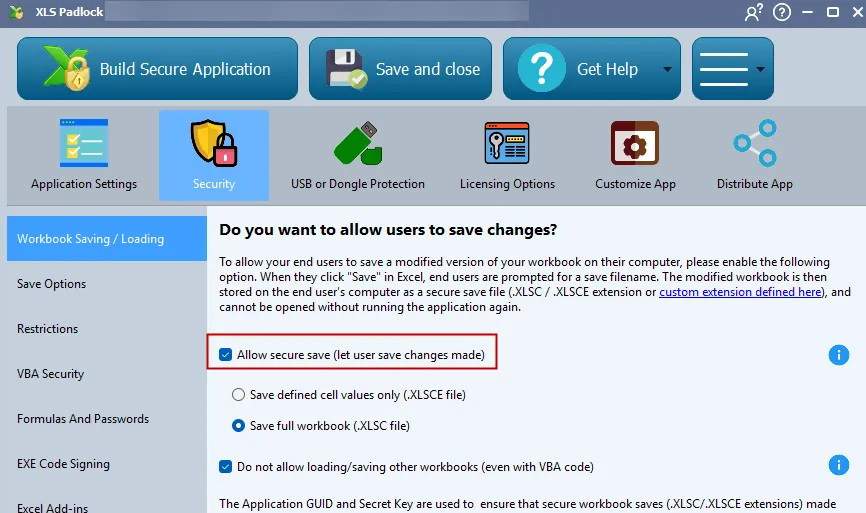
Section titled “How XLS Padlock Saves and Loads User Changes”To enable or disable saving, check the “Allow secure save” option on the Security page:
-
If this option is disabled, your application will never be modified. Any changes a user makes are discarded when they close the application. Note that in some Excel versions, the Save button is not disabled and will appear to work, but no changes are actually saved.
-
If this option is enabled, your customers will be able to save their modifications. You will then need to select a saving mode.
To save changes, end-users can click the standard Save button 
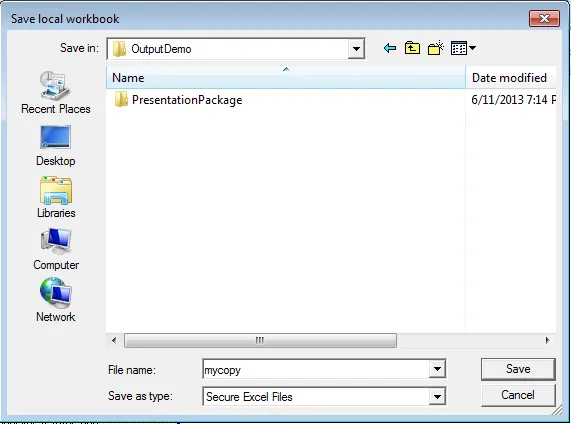
This save file is given the .XLSC (or .XLSCE) extension and cannot be opened without running the secure application again.
By default, the dialog box will ask end-users if they want to overwrite their changes. You can disable this behavior in the Advanced Options.
How End-Users Load Their Changes
Section titled “How End-Users Load Their Changes”The next time they run your application, customers will have the choice to open your original workbook or a version they previously saved. The welcome screen allows them to “Choose Save File” or load a file from the “Recent Saves” menu.
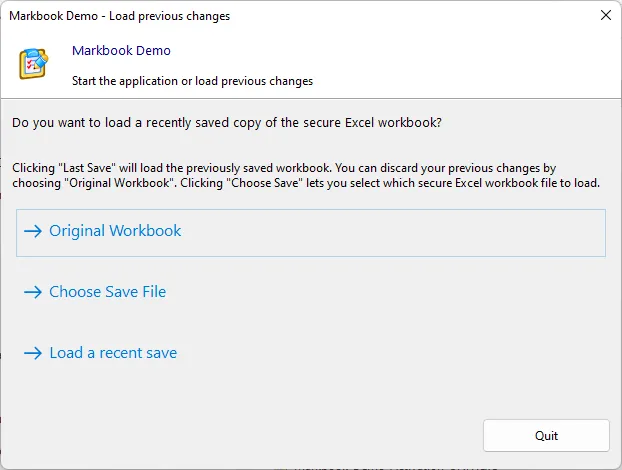
By default, the “Save As” dialog box is displayed each time a user clicks the Save button. The last file saved is automatically remembered. Note that only the Save command works; Save As is always disabled.