How to Distribute a Protected Workbook
Compile Your Excel Workbook to EXE
Section titled “Compile Your Excel Workbook to EXE”In XLS Padlock, when you click “Build Secure Application” 
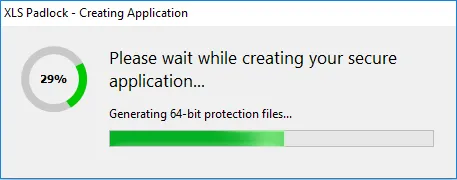
When it’s finished, your secure application is ready. XLS Padlock has generated an executable file (.EXE) from your Excel workbook.
▶️Now, to access the protected workbook, end-users launch this .EXE file. A local copy of Microsoft Excel is the only other requirement. Your original workbook file is NO MORE required.
- Upon launching the .EXE file, Excel starts, and the protected workbook is opened. End-users can interact with it as if they had opened it in the usual manner.
- Certain Excel features like “New Workbook”, Open, and Save (optionally) are disabled for security reasons.
- If Excel is not found on the user’s computer, an error message will be displayed. You can configure your application to require specific versions of Excel.
Application Packaging Options
Section titled “Application Packaging Options”XLS Padlock offers two formats for your secure application, which influences how you distribute it and manage security warnings like Windows SmartScreen.
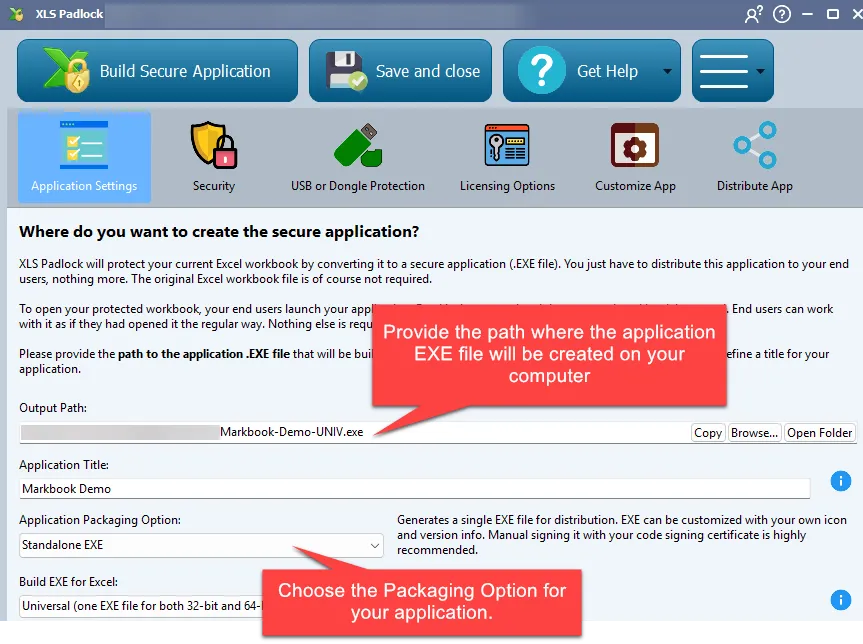
Standalone EXE
Section titled “Standalone EXE”XLS Padlock creates a single executable file (.EXE) from your workbook. You simply distribute this single file to your end-users. The original Excel workbook is not required.
EXE + XPLAPP Application Bundle
Section titled “EXE + XPLAPP Application Bundle”This option generates an EXE file, a .bin64 companion file, and a separate .xplapp data file. The main EXE is pre-signed by our company, which helps with recognition from Windows SmartScreen and antivirus software.
- You must distribute all three files together (
.exe,.bin64, and.xplapp). - XLS Padlock can bundle these files into a single Zip archive or an installer for easier distribution.
- This option greatly reduces the risk of “Unknown Application” warnings and antivirus false positives.
Distribution Recommendations
Section titled “Distribution Recommendations”- Digitally Sign Your EXE Files: This is the most important step to avoid antivirus false positives and build trust with your users. XLS Padlock can automate this process if you have a code signing certificate.
- Temporarily Disable Your Antivirus: If you have an active antivirus program, consider disabling it before compiling your workbooks. Antivirus software can sometimes incorrectly flag the creation of new EXE files on your computer.
- Do Not Email EXE Files: Most email providers block
.exefiles. Instead, upload your application files to a file hosting service like Dropbox, Google Drive, or your own web server, and share the download link. You can also package your application in a Zip archive.