Workbook Updates
After distributing your Excel workbook application, you will eventually need to provide updates to your users. XLS Padlock offers several tools to streamline this process.
An important consideration for updates is how your application saves user data. You should be aware of the different save modes offered by XLS Padlock before you build your application.
If your workbook will be updated often and your users only need to modify a few cell values, the Save defined cell values only (.XLSCE file) mode is the best choice. This mode lets you update the main workbook file without affecting user data, as XLS Padlock saves and restores only the cell values you have designated.
When you update your source workbook, the most direct way to distribute the update is to recompile it and send the new EXE file to your customers.
Recommended Update Workflow
Section titled “Recommended Update Workflow”The behavior at the user’s end depends on what you have changed between releases:
- Workbook contents only (formulas, formatting, sheets, VBA logic): keep the existing Application GUID and Secret Key. In
.XLSCEmode, users will see your new logic with their saved cell values restored. In.XLSCmode, users will keep seeing their last saved snapshot, your changes will only appear if they manually choose “Original Workbook” from the welcome screen. - You want to invalidate old user save files entirely: generate a new Secret Key in the Activation and Licensing settings, but leave the Application GUID unchanged so existing activation keys remain valid. On the user’s first launch, their old save file will be detected as incompatible and they will be prompted with the welcome screen to load the original embedded workbook instead.
- Do not switch save modes between releases (
.XLSC↔.XLSCE). Existing save files from the previous mode will be ignored, and any data your users had not yet re-entered will be lost. Pick a save mode at the beginning of the project and keep it for the lifetime of the application.
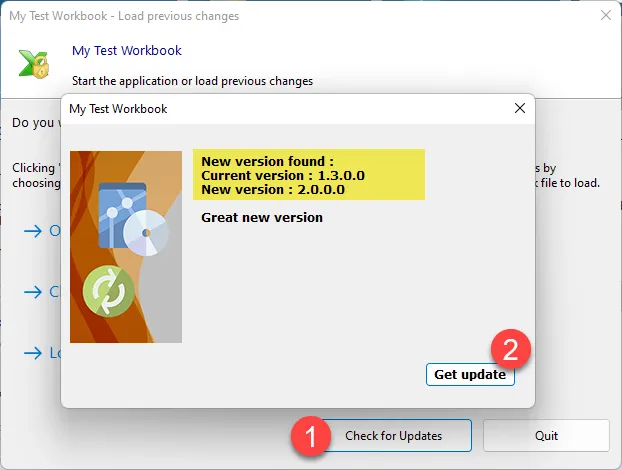
👉 However, manually downloading and replacing the EXE file can be tedious for end-users. To simplify this, XLS Padlock provides an automatic web update feature. You can configure your application to check for updates online and notify users when a new version is available:
This feature can be configured quickly and directly within XLS Padlock:
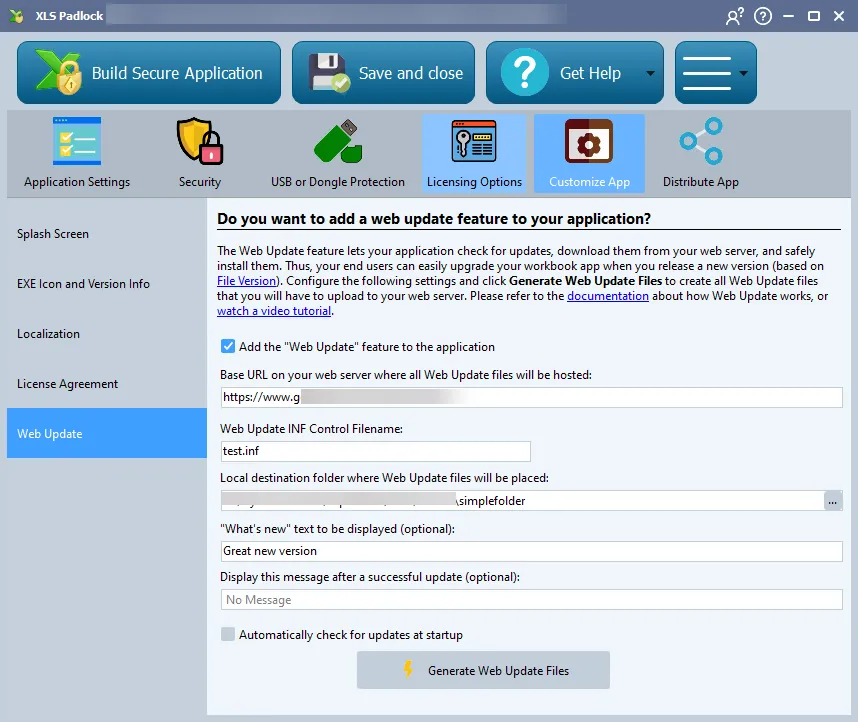
👉 To set up your own update system, you will need a web server or hosting space where you can place files for direct download. Then, follow the instructions on the how to set up automatic web updates page.
Since XLS Padlock 2026.3, these updates are signed: your applications only install update files that you generated yourself. See Authenticated Updates.