Protect workbook data
Use secure save files when users must keep their own data between sessions. XLS Padlock stores changes in .XLSC or .XLSCE files that only your compiled application can reopen.
XLS Padlock protects an Excel workbook by combining several independent layers: encrypted workbook storage, feature restrictions, formula and VBA protection, controlled workbook opening, code signing, add-in control, and Excel version checks.
Protect workbook data
Use secure save files when users must keep their own data between sessions. XLS Padlock stores changes in .XLSC or .XLSCE files that only your compiled application can reopen.
Reduce Excel surface area
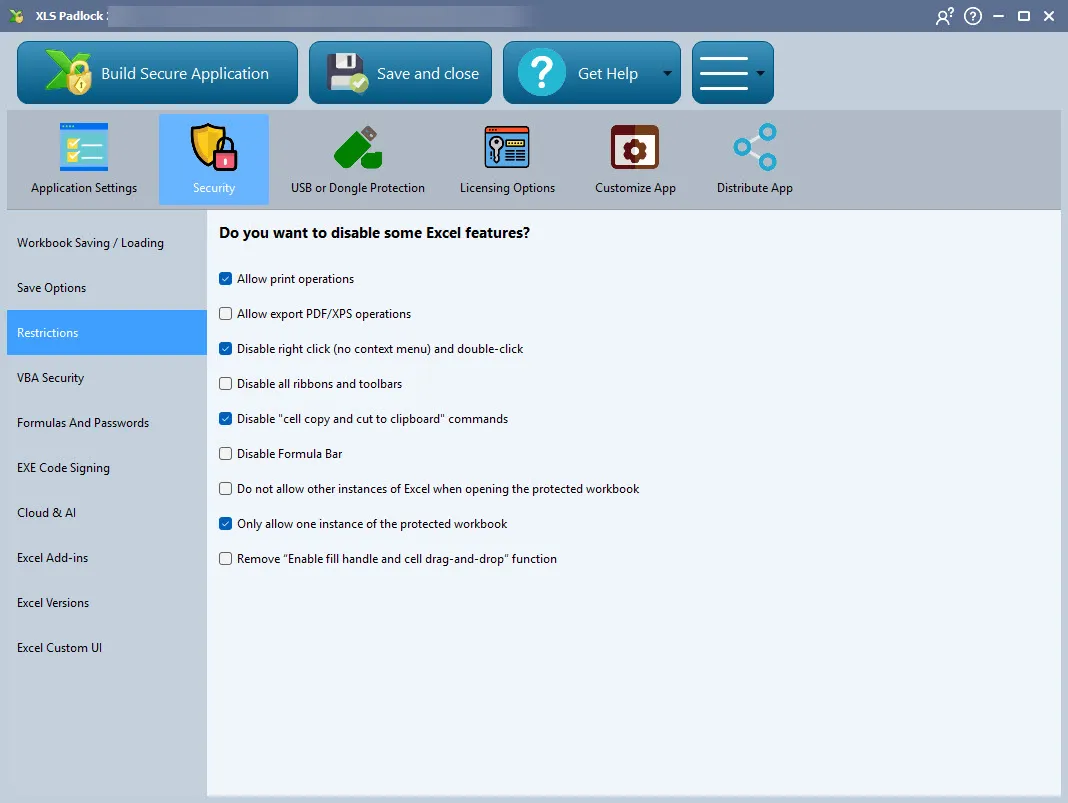
Disable the Excel features that could expose formulas, content, or workbook structure, including print, PDF export, right-click, copy commands, ribbons, and the formula bar.
Protect source logic
Combine formula protection, worksheet passwords, VBA project locking, VBE blocking, and the VBA Compiler when the workbook contains sensitive formulas or VBA code.
Control trust and compatibility
Sign the compiled .EXE, limit supported Excel versions, and decide which add-ins can run inside the protected application.
Keep cloud and AI exposure under control
Review Cloud and AI options when workbook content, formulas, or generated output must stay local and should not be exposed through connected Excel features.
Define what must stay private. Identify formulas, VBA modules, worksheets, external references, and user data that should not be copied or inspected.
Choose the save model. If users need persistent data, enable workbook saving and decide whether saves should be hardware-locked.
Lock down Excel actions. Disable only the Excel commands that create a real exposure path for your workbook.
Protect code and formulas. Apply formula protection, worksheet passwords, VBE blocking, and VBA Compiler settings where they add meaningful protection.
Prepare distribution. Code-sign the .EXE, set compatible Excel versions, and test the protected application on a clean Windows machine.
Use this profile when the workbook is distributed to trusted colleagues or customers who mainly need a reliable compiled workbook.
.EXE is shared outside your organization.Use this profile when the workbook is sold or delivered to external customers under a license.
.EXE before distribution.Use this profile for pricing models, audit tools, engineering calculators, and workbooks where formulas or VBA are the product.
When saving is enabled, XLS Padlock creates secure .XLSC or .XLSCE files that can only be opened by your compiled application. This protects user data without distributing the original workbook source file.
Save options let you control how changes are stored: automatic save on close, hardware-locked save files, and welcome screen behavior. You can also explore or delete the save storage folder used by the protected application.
Restrictions reduce what the user can do inside Excel. You can disable print operations, PDF/XPS export, right-click and double-click, ribbon access, clipboard commands, the formula bar, multiple application instances, and fill handle drag-and-drop.
The Cloud and AI options page controls Microsoft 365 connected features that may expose workbook content outside the local Excel session. Use it to disable cloud features, Web Add-ins, and AI assistance when formulas, user data, or generated results must stay local to the protected workbook environment.
VBA security options prevent users from viewing or modifying the VBA project. For stronger protection, use the VBA Compiler so selected VBA code is compiled and no longer shipped as readable source.
Formula protection lets formulas calculate normally while preventing users from viewing or copying the formula logic. You can also manage workbook and worksheet passwords directly from XLS Padlock.
Code signing identifies the publisher of the compiled .EXE and helps reduce Windows SmartScreen and antivirus warnings. It is recommended before distributing protected workbooks to customers.
XLS Padlock disables most add-ins by default. Re-enable only the COM add-ins or common Excel add-ins, such as Analysis ToolPak or Solver, that your workbook requires.
Excel version checks let you define which Microsoft Excel versions can run the protected application. If the installed Excel version is unsupported, the application can display a custom error message.