How to Set Up Activation Keys
Activation keys are a powerful licensing system that allows you to control who can access your protected workbooks. This guide shows you how to get started.
1. Enable Activation Keys
Section titled “1. Enable Activation Keys”In the XLS Padlock security settings, check the box for “End users must enter an activation key in order to use the protected workbook”.
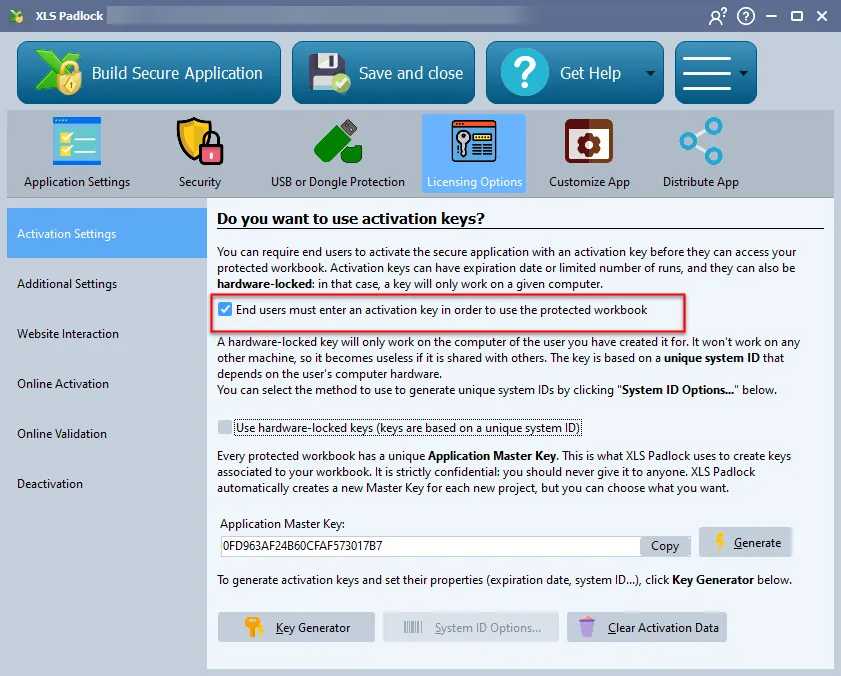
Once this is done, rebuild your application.
2. Test Your Application
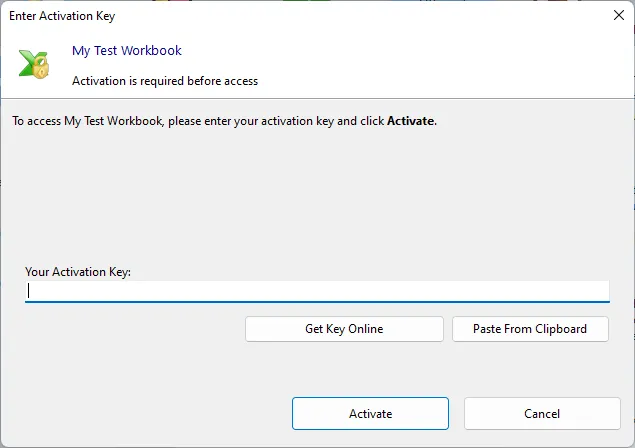
Section titled “2. Test Your Application”When you run the newly compiled application, you will now be prompted to enter an activation key before you can access the workbook:
3. Generate Activation Keys
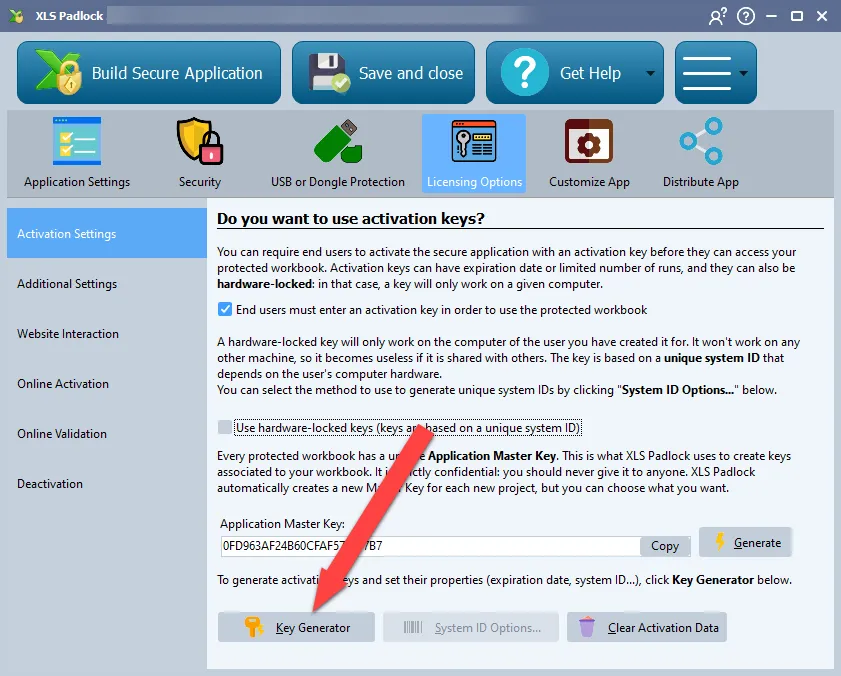
Section titled “3. Generate Activation Keys”To create activation keys, open the Key Generator in XLS Padlock.
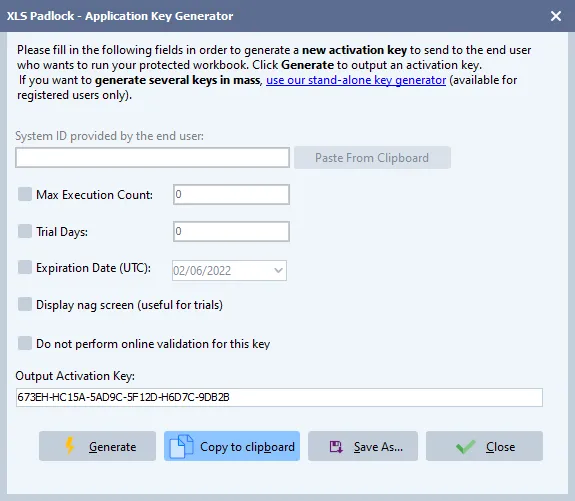
If you wish, you can set restrictions on the key, such as limiting the number of runs or setting an expiration date.
Click the Generate button to instantly create a key. You can then copy this key to your clipboard to send to your customer.
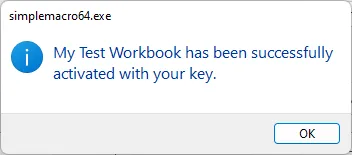
When your customer enters the key and clicks Activate, they will be granted access to the workbook. The application will not ask for the key again unless it expires.
Automating Key Generation
Section titled “Automating Key Generation”For easier key distribution, a stand-alone key generator application is available for registered customers. We also provide free web applications for generating keys automatically through your website.