Description of the activation process
To determine the number of allowed activations for your compiled workbook EXE, the web application stores custom data into FastSpring orders thanks to the Tags feature.
When a customer purchases a subscription for your compiled workbook EXE through FastSpring, an initial order is generated and appears in the Orders list:
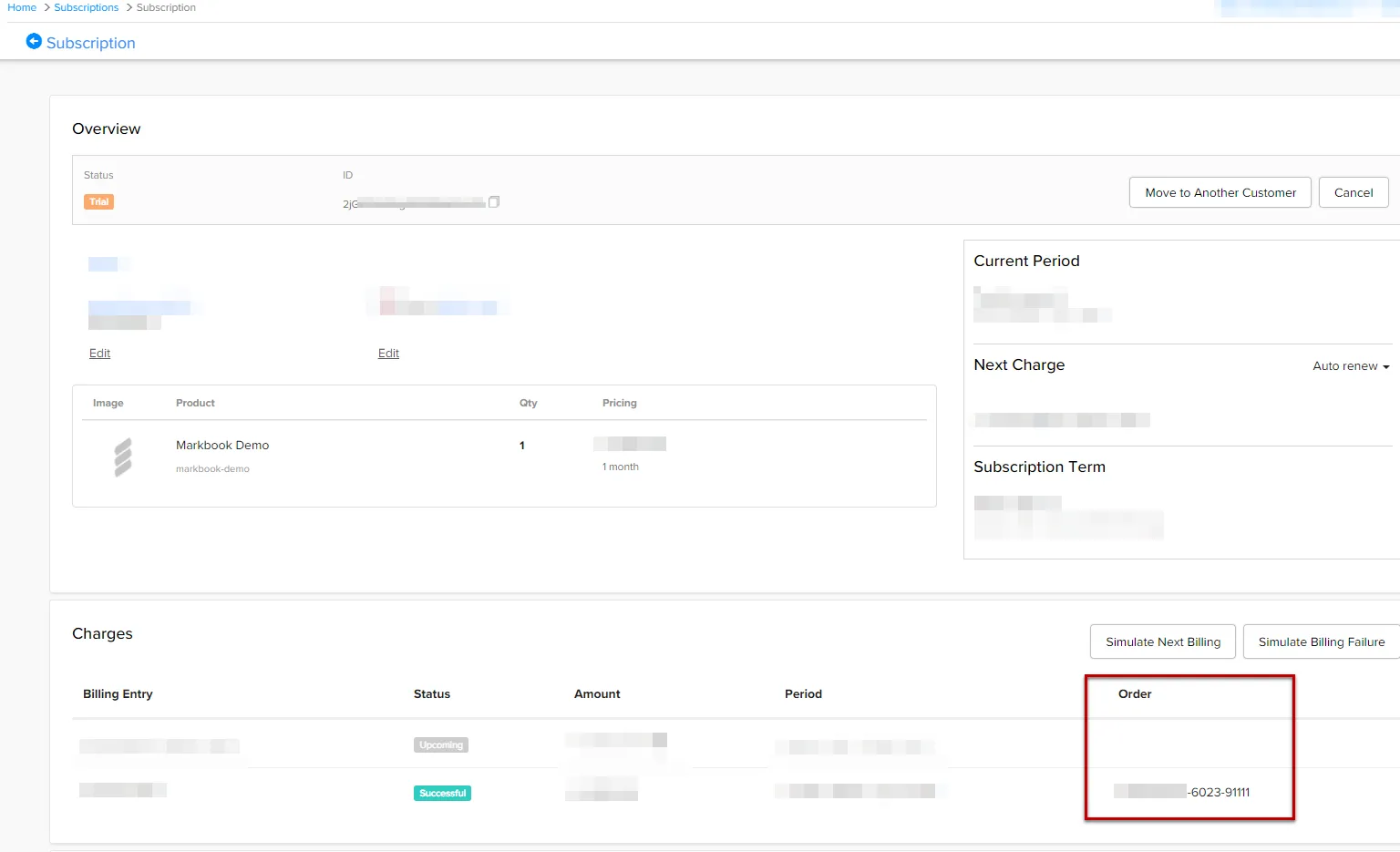
Activation and validation processes for a subscription managed by the web application use the activation token that identifies the subscription in FastSpring.
This activation token must be sent to the customer who purchased your workbook. This token lets him activate the workbook. By default, FastSpring will send the activation token automatically.
When customers run the compiled workbook EXE file, a dialog box appears telling them that an activation is required. As said before, the dialog box must at least ask for the activation token (you can name it what you want but the associated HTML field ID must be “token”, see configuring the Excel workbook for subscriptions).
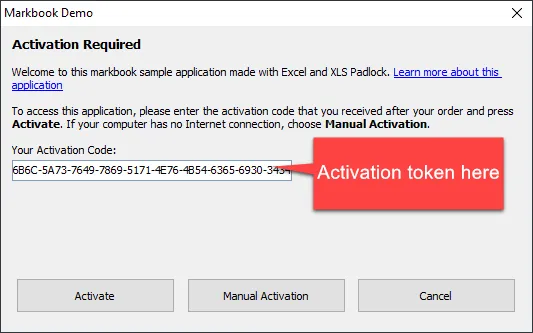
When the customer clicks Activate, data is sent to the activation server:
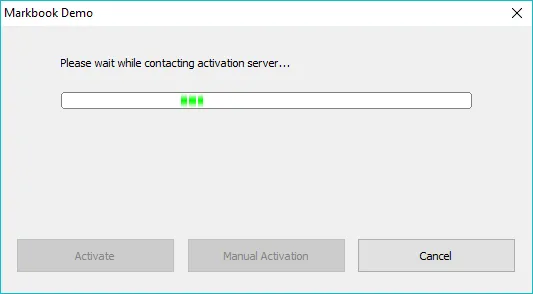
The FS kit on the activation server will check the subscription’s status and different settings.
This ensures that only paid customers with an active subscription can activate your workbook.
After a successful activation, a confirmation message is shown, and the compiled workbook EXE is restarted. If an error occurs, the corresponding message box is shown, and customer can try to activate again.