Overview of Application Settings
The Application Settings page contains the mandatory settings for your project.
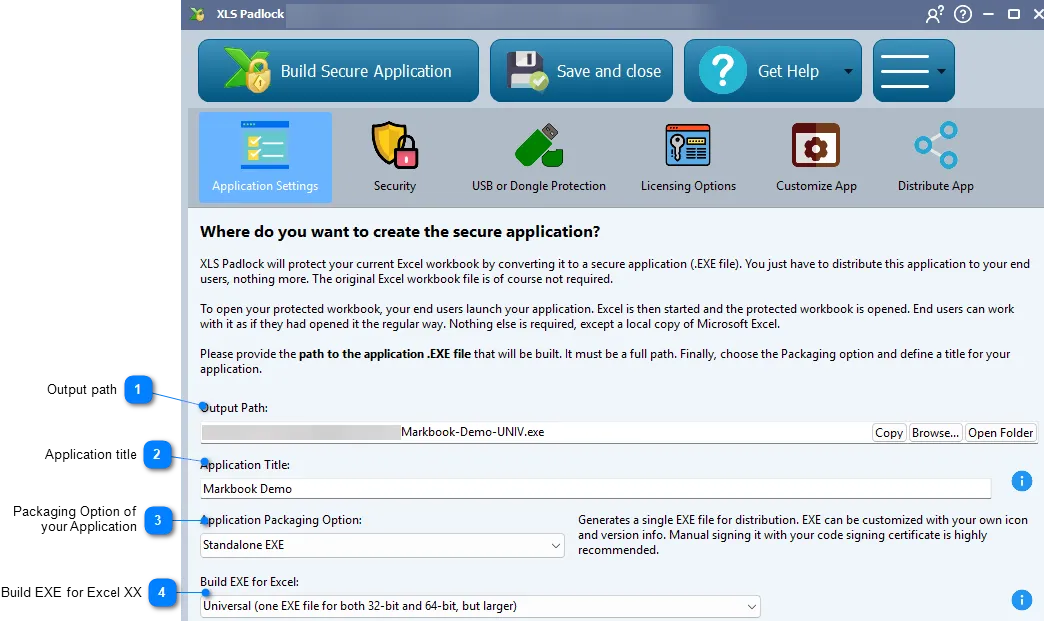
Core Settings
Section titled “Core Settings”Output Path
Section titled “Output Path”👉 Defines where the final EXE file will be created.
XLS Padlock compiles your workbook into a single executable (EXE) file. In the “Output Path” field, you must specify the full path and filename where you want your application to be created.
Relative paths are also accepted; they will be relative to the folder that contains your source workbook file. By default, XLS Padlock suggests a path in the same folder as your source workbook, but you can change it to any location.
Application Title
Section titled “Application Title”👉 Sets the title of your application’s main window.
You can set a custom title for your application. This title is displayed in the window’s title bar, replacing the default “Microsoft Excel” text.
If you want to dynamically display the filename of a loaded save file, you can use the following placeholders in the title:
%SAVEFILENAME%: Replaced by the filename only (e.g.,MyData.xlsc).%SAVEFULLNAME%: Replaced by the full path to the save file (e.g.,C:\Users\Me\Documents\MyData.xlsc).
For example, a title set to My Application, %SAVEFILENAME% would display as “My Application, MyData.xlsc” when the user has that file open.
Application Packaging Option
Section titled “Application Packaging Option”See Packaging Option: Choose between a standalone EXE or a bundle for distribution.
Build EXE for Excel
Section titled “Build EXE for Excel”See Build EXE for Excel: Specify whether to build for 32-bit, 64-bit, or universal compatibility.