Configuration du produit d'abonnement dans workbooks.json
Les étapes ci-dessous concernent les produits d’abonnement.
- Modifiez le fichier workbooks.json stocké sur votre serveur.
- Si ce n’est pas déjà fait, accédez à la WooCommerce admin page (page d’administration de WooCommerce) et créez le produit d’abonnement qui sera associé à votre classeur. Si vous ne savez pas comment procéder, veuillez consulter la documentation WooCommerce
- Dans la page d’administration de WooCommerce, choisissez Products (Produits) et placez le curseur sur le produit d’abonnement souhaité. L’identifiant (ID) s’affichera. Sur la capture d’écran ci-dessous, il s’agirait de 13 :
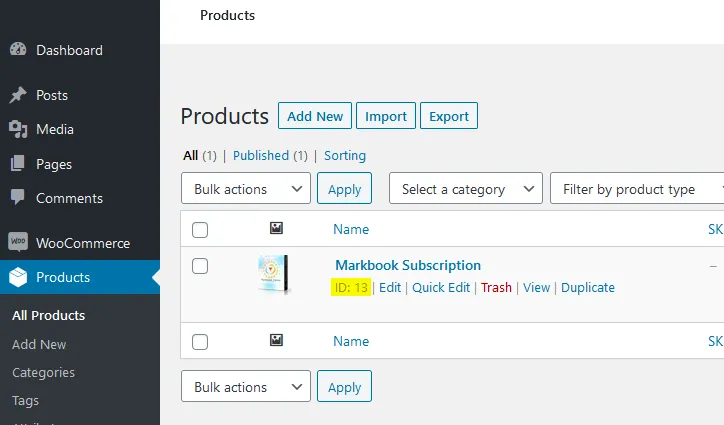
- Dans le fichier workbooks.json, remplacez “product ID” par l’identifiant de produit que vous avez obtenu. Dans notre cas ci-dessus, nous écririons “13” :
{ "products": { "13": { … "variations": { "variation ID 1": {- Vous pouvez ensuite donner le titre de votre choix à votre classeur. Cela est purement informatif et peut vous aider à vous repérer lorsque vous configurez plusieurs classeurs :
{ "products": { "13": { "title": "My workbook title",- Démarrez Excel, ouvrez votre classeur Excel et XLS Padlock.
Accédez à la page “Activation Keys / Activation Settings”. Cliquez sur le bouton “Copy” situé près du champ “Application Master Key” :
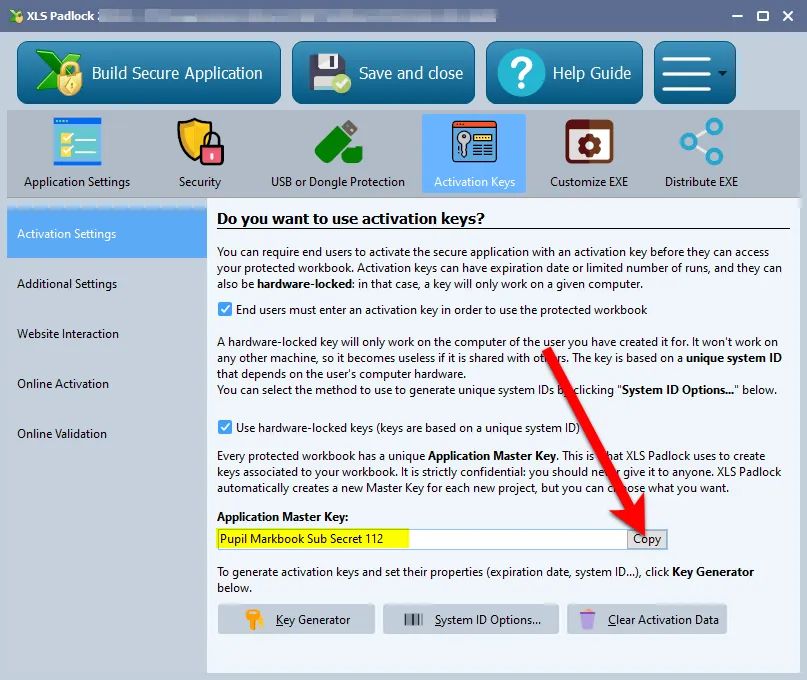
Collez cette valeur dans workbooks.json comme valeur de l’entrée xlspadlockmasterkey. D’après la capture d’écran ci-dessus, cela donnerait :
{ "products": { "13": { "title": "My workbook title", "xlspadlockmasterkey": "Pupil Markbook Sub Secret 112", "variations": {…
- De retour dans XLS Padlock, choisissez Online Activation et cliquez sur le bouton “Copy” situé près du champ “Security Private Key” :
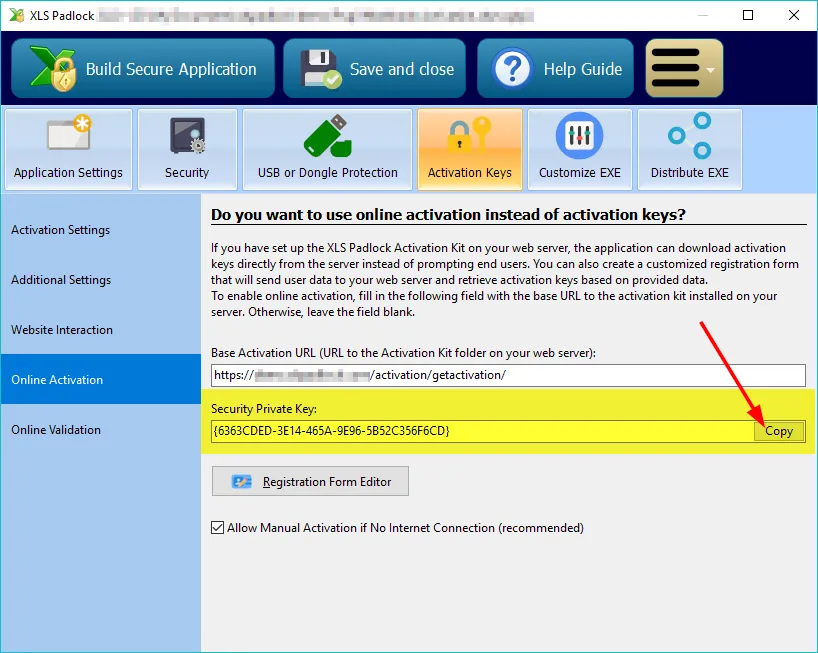
Collez cette valeur dans workbooks.json comme valeur de l’entrée xlspadlockprivatekey. D’après la capture d’écran ci-dessus, cela donnerait :
{ "products": { "31": { "title": "My workbook title", "xlspadlockprivatekey": "{6363CDED-3E14-465A-9E96-5B52C356F6CD}", "xlspadlockmasterkey": "Pupil Markbook Sub Secret 112", "variations": {…
- Toujours sur la page Online Activation de XLS Padlock, regardez l’option “Compatibility mode for pre-2026 activation kits (unsigned line-based protocol)”.
- Si elle est cochée, votre classeur utilise le protocole historique. L’entrée xlspadlockprivatekey ci-dessus suffit à ce produit et vous pouvez passer directement aux variations.
- Si elle est décochée, votre classeur utilise le protocole d’activation 2026, dans lequel le kit signe ses réponses avec une clé Ed25519. Cette clé de signature est distincte de la Security Private Key, et le kit en a besoin pour répondre à ce classeur.
Pour l’obtenir, cliquez sur le bouton “Generate keypair…” de la page Online Activation. XLS Padlock affiche la clé privée une seule fois. Collez-la dans workbooks.json comme valeur de l’entrée xlspadlocksignkey pour ce produit :
{ "products": { "31": { "title": "My workbook title", "xlspadlockprivatekey": "{6363CDED-3E14-465A-9E96-5B52C356F6CD}", "xlspadlocksignkey": "votre clé privée en base64", "xlspadlockmasterkey": "Pupil Markbook Sub Secret 112", "variations": {Traitez cette clé exactement comme une clé privée SSL. Quiconque la détient peut forger des réponses d’activation destinées à vos clients.
- Nous allons maintenant traiter les variations :
- si votre produit d’abonnement ne contient aucune variation, saisissez “0” comme identifiant de variation.
- Sinon, si vous avez un abonnement variable, vous devrez créer un bloc “variation” pour chaque variation présente dans votre produit et configurer les propriétés correspondantes.
Pour obtenir l’identifiant de variation, dans votre administration WooCommerce, choisissez votre produit dans “Products”. Ensuite, dans “Product Data”, cliquez sur l’onglet “Variations” et les identifiants de variation sont listés après chaque dièse, comme vous pouvez le voir mis en évidence sur la capture d’écran ci-dessous :
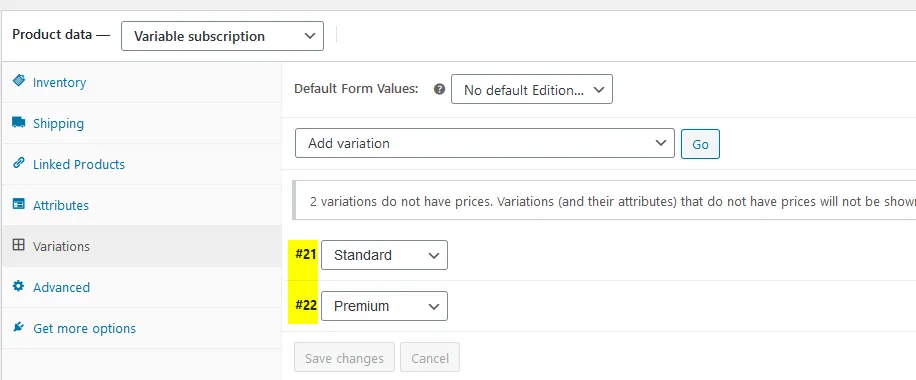
Accédez au fichier workbooks.json et localisez le bloc “variation”. Saisissez votre identifiant de variation pour le premier bloc de variation. Si votre produit d’abonnement n’a aucune variation définie dans WooCommerce, saisissez “0” comme identifiant. Dans notre exemple, nous saisirions 21 comme ci-dessous :
{ "products": { "13": { "title": "My workbook title", "xlspadlockprivatekey": "{6363CDED-3E14-465A-9E96-5B52C356F6CD}", "xlspadlockmasterkey": "Pupil Markbook Sub Secret 112", "variations": { 21: { "usehardwarelocking": 1, "maxactivperorder": 2, "keymaxdays": 180, "shownagscreen": 0 },…- Nous pouvons maintenant configurer les différentes propriétés de cette variation :
- Si vous ne souhaitez pas générer de clés d’activation verrouillées au matériel (NON RECOMMANDÉ), changez l’entrée usehardwarelocking de 1 à 0.
- Définissez le nombre d’activations autorisées par commande grâce à l’entrée maxactivperorder. Cela vous permet de définir sur combien de machines un utilisateur final (par exemple celui qui a acheté votre classeur compilé EXE) peut activer le classeur. Par défaut, il s’agit de la valeur définie dans le config.ini (voir ci-dessus).
Remarque : la quantité commandée est également prise en compte. Par exemple, si le client a acheté une quantité de 2 produits et avec maxactivperorder = 2, nous autoriserions 4 activations.
1. Si vous souhaitez générer des clés d'activation qui afficheraient un écran de rappel (nag screen), utile pour les essais, changez l'entrée **shownagscreen** de 0 à 1.2. Enfin, si vous souhaitez définir une date d'expiration ou un nombre maximum d'exécutions / de jours, c'est possible. **N'oubliez pas que XLS Padlock n'autorise qu'un seul mode d'expiration** : date, nombre d'exécutions ou nombre de jours par clé d'activation. 1. Pour un nombre maximum d'exécutions, définissez l'entrée nommée "**keymaxruns**" et réglez sa valeur sur le nombre d'exécutions que vous souhaitez autoriser. 2. Pour un nombre maximum de jours, définissez l'entrée nommée "**keymaxdays**" et réglez sa valeur sur le nombre de jours que vous souhaitez autoriser. 3. Pour une date d'expiration fixe, définissez l'entrée nommée "**keyexpiredate**" et réglez sa valeur sur la date au format obligatoire suivant : YYYY/MM/DD11. Répétez les mêmes étapes pour toutes les variations de votre produit. Par exemple, ci-dessous vous pouvez voir que nous avons défini deux variations (une avec une date d’expiration fixe et une autre avec un nombre de jours autorisés) :
{ "products": { "13": { "title": "My workbook title", "xlspadlockprivatekey": "{6363CDED-3E14-465A-9E96-5B52C356F6CD}", "xlspadlockmasterkey": "Pupil Markbook Sub Secret 112", "variations": { 21: { "usehardwarelocking": 1, "maxactivperorder": 2, "keymaxdays": 180, "shownagscreen": 0 }, 22: { "usehardwarelocking": 1, "maxactivperorder": 4, "shownagscreen": 0 }, } …