Proceso de activación para suscripciones
Para determinar el número de activaciones permitidas para su libro compilado EXE, la aplicación web almacena datos personalizados en los pedidos de WooCommerce mediante la función de Campos personalizados.
Cuando un cliente adquiere una suscripción para su libro compilado EXE a través de WooCommerce, se genera un pedido inicial y aparece en la lista de pedidos. Este pedido inicial que creó la suscripción se denomina parent order (pedido principal).
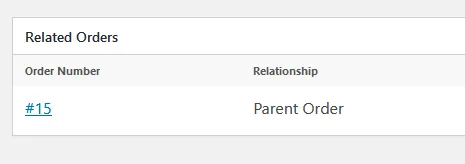
Para una suscripción determinada, puede encontrar el pedido principal editando la suscripción y, en la sección Related Orders, se indica el Parent Order:
Los procesos de activación y validación para una suscripción gestionados por la aplicación web utilizan el activation token (token de activación) que identifica la suscripción en la base de datos de WooCommerce (consulte Configuración del libro de Excel para suscripciones).
Por ejemplo, [email protected] es un token de activación válido. La aplicación web utilizará el número que aparece después del carácter - para identificar el ID del pedido principal de la suscripción en la base de datos de WooCommerce. A continuación, comprobará si la dirección de correo electrónico almacenada en el pedido coincide con el correo electrónico proporcionado en el token de activación antes del carácter -. Por último, la aplicación web recupera los detalles de la suscripción.
Este token de activación debe enviarse al cliente que adquirió su libro. Este token les permite activar el libro. Algunos complementos de WooCommerce permiten enviar correos electrónicos a los clientes tras la compra (consulte Envío del token de activación a los clientes en caso de suscripciones): asegúrese de incluir el token de activación en el correo electrónico.
Cuando los clientes ejecutan el archivo del libro compilado EXE, aparece un cuadro de diálogo que les informa de que se requiere una activación. Como se ha dicho antes, el cuadro de diálogo debe solicitar al menos el token de activación (puede darle el nombre que desee, pero el ID del campo HTML asociado debe ser “token”, consulte onfiguring the Excel workbook for subscriptions).
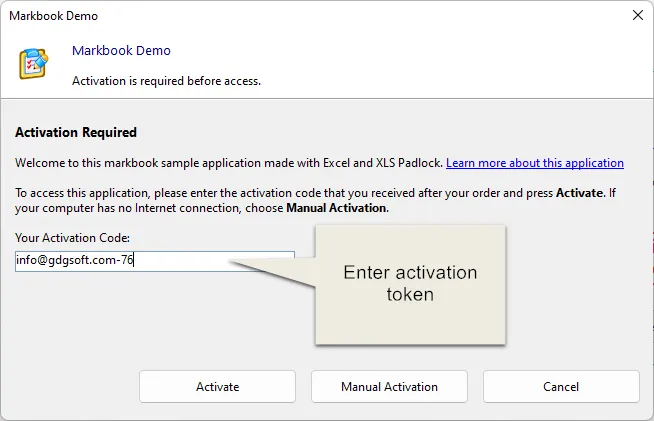
Cuando el cliente hace clic en Activate, los datos se envían al servidor de activación:
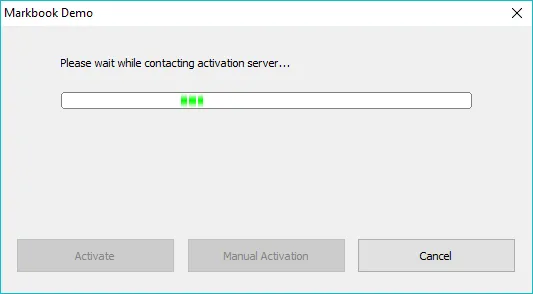
El kit de WooCommerce en el servidor de activación comprobará el estado de la suscripción y diferentes ajustes.
Esto garantiza que solo los clientes de pago con una suscripción activa puedan activar su libro.
Tras una activación correcta, se muestra un mensaje de confirmación y se reinicia el libro compilado EXE. Si se produce un error, se muestra el cuadro de mensaje correspondiente y el cliente puede intentar activar de nuevo.