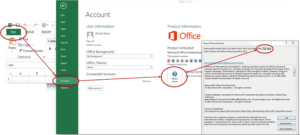
Save files created by your application are encrypted and cannot be opened directly in Excel. However, as the workbook’s original author, you can decrypt any save file generated by your application. This is useful for recovering data if a customer sends you their save file.
To open a save file (.xlsc or .xlsce), choose “Decrypt Save File” from the XLS Padlock ribbon in Excel:

Decrypting .XLSC Files (Full Save Mode) #
If you select an .xlsc file created with the full save mode, XLS Padlock will decrypt the entire workbook and open it.
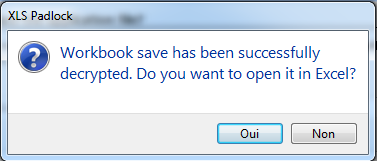
Decryption Limitations
- Formulas protected with XLS Padlock cannot be recovered when decrypting a save file. The decrypted workbook may not be fully functional. This feature should only be used to recover user-entered data.
- The same limitation applies to the VBA project if you have locked or compiled it.
- To use the workbook with all features intact, you should run your secure application and load the save file normally.
Decrypting .XLSCE Files (Cell Values Mode) #
If you select an .xlsce file created with the cell values saving mode, XLS Padlock will ask if you want to overwrite the cells in your currently open workbook with the values from the save file.
Danger
Confirming this operation will permanently overwrite the cell values in your open source workbook.
Project File Required
This decryption feature requires the original XLS Padlock project file (.xplp) that was used to create the application. XLS Padlock uses your project settings (like the Secret Key) to encrypt and decrypt save files. Without the correct project file, you cannot decrypt saves. Never share your XLS Padlock project files.