XLS Padlock gives you several ways to customize your compiled Excel application, allowing you to personalize its appearance, messages, and behavior for end users.
This topic provides an overview of the options available under “Customize App” in XLS Padlock:
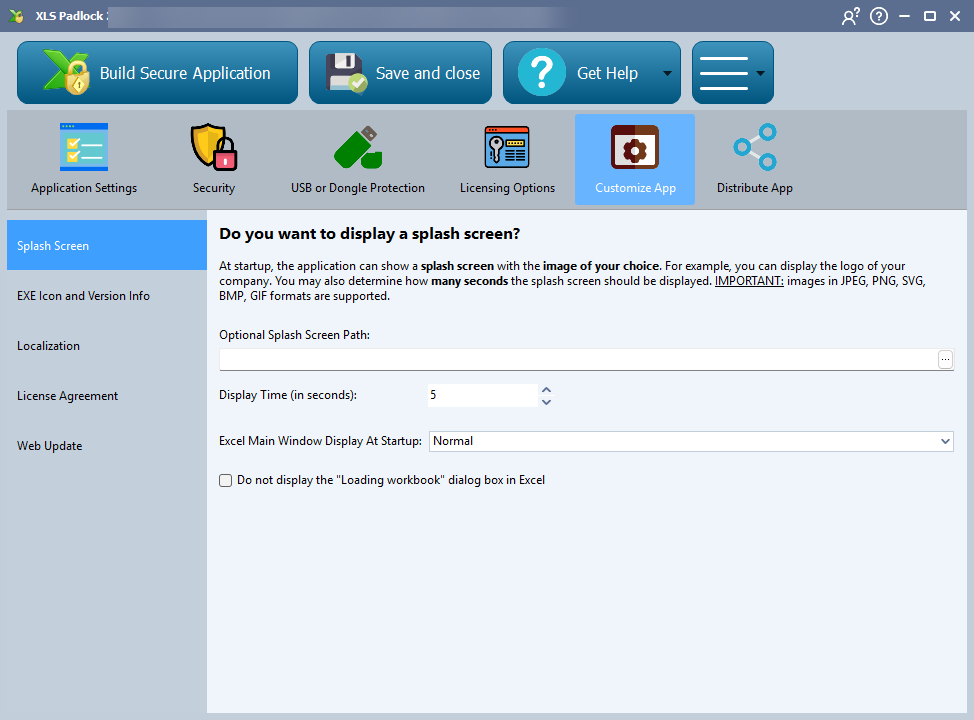
Splash Screen #
Display a custom splash screen when your application starts — for example, your company logo or a branded welcome image.
You can choose the image format (JPEG, PNG, BMP, SVG, or GIF), set how many seconds it stays visible, and control how the Excel window behaves during startup.
➡️ Learn more about Splash Screen settings
EXE Icon and Version Info #
Replace the default XLS Padlock icon with your own application icon.
You can also specify version information such as the product name, company name, copyright, and file description — all visible in the Windows File Properties dialog.
This helps you brand your EXE as a professional standalone application.
➡️ Learn more about EXE Icon and Version Info
Localization #
Customize or translate all built-in dialogs, messages, and prompts displayed by your protected workbook.
XLS Padlock provides a flexible localization system so you can adapt your app for different languages or create fully personalized user messages.
➡️ Learn more about Localization
License Agreement #
Add a license agreement that users must accept before running your compiled Excel application for the first time.
You can include plain text or load an external RTF/HTML file.
If users decline the agreement, the application will not continue to open.
➡️ Learn more about License Agreement
Web Update #
Enable web-based updates for your Excel application.
This feature allows you to notify users when a new version of your EXE is available and automatically download it from your website or server.
It’s an efficient way to keep your users up to date with minimal effort.