XLS Padlock offers many ways to protect your Excel workbook, including save options, feature restrictions, and conditions for opening your application, such as requiring an activation key or the presence of a dongle or USB stick.
This topic provides an overview of the available security options under “Security” in XLS Padlock.
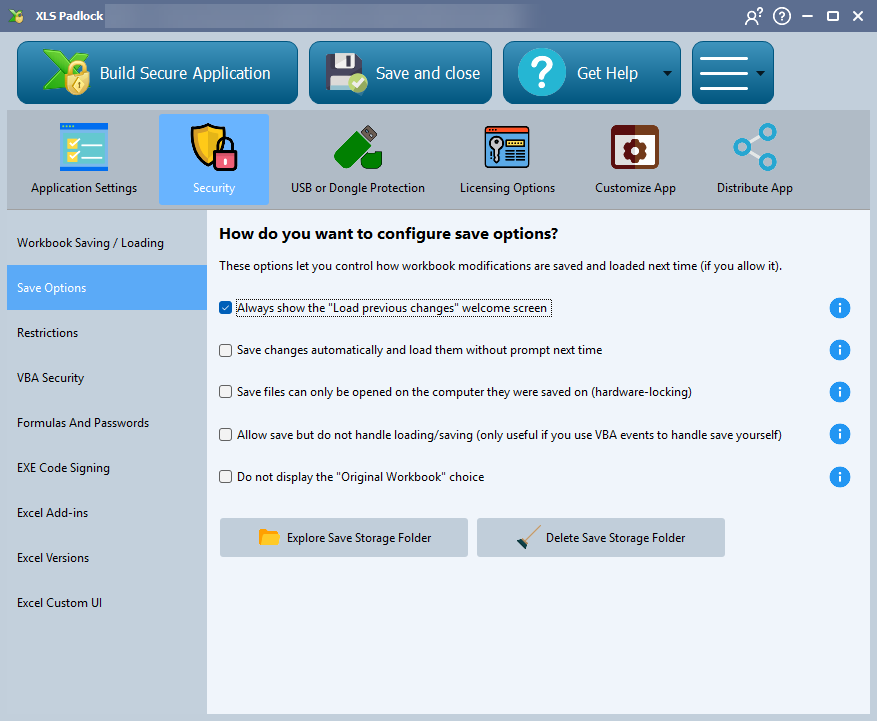
Workbook Saving / Loading #
Configure whether end-users can save changes to the protected workbook. When saving is enabled, XLS Padlock creates secure .XLSC or .XLSCE files that can only be opened by your application, protecting the user’s data.
➡️ Learn more about Workbook Saving and Loading
Save Options #
Fine-tune the saving behavior with options like automatically saving changes upon closing, hardware-locking save files to a specific computer, or always displaying the welcome screen to let users choose between starting fresh and loading previous work.
➡️ Explore advanced save options
Restrictions #
Restrict key Excel features to enhance security. You can disable the right-click context menu, the formula bar, copy/paste commands, printing, and more to prevent users from accessing or modifying sensitive parts of your workbook.
➡️ See the restriction features
VBA Security #
Protect your VBA code from being viewed or modified. You can lock the VBA project with a password that is hidden from the user or completely block access to the VBA editor (VBE), rendering password-cracking tools useless. For ultimate protection, use the VBA Compiler.
➡️ See the different VBA protection means
Formulas and Passwords #
Secure your formulas and worksheet structure. Use XLS Padlock’s formula protection to let users interact with formulas without being able to see or copy them. You can also manage workbook and worksheet passwords directly from the interface.
➡️ Learn more about formula protection
EXE Code Signing #
Digitally sign your compiled .EXE file to build trust with your users and avoid warnings from Windows SmartScreen and antivirus software. XLS Padlock can automate the signing process if you have a code signing certificate.
➡️ How to code sign your application
Excel Add-ins #
By default, XLS Padlock disables most add-ins for security. This section allows you to selectively re-enable specific COM add-ins or common Excel add-ins (like the Analysis ToolPak or Solver) that are required for your workbook to function correctly.
➡️ How to manage Excel add-ins
Excel Versions #
Specify which versions of Microsoft Excel are compatible with your protected application. If a user tries to run the EXE on an unsupported version, a customizable error message will be displayed.