How to Code Sign Your EXE File (Digital Signature)
When you digitally sign your standalone workbook EXE file, you assure end-users that the file is authentic and has not been tampered with. This process, also known as code signing, uses Microsoft Authenticode® technology to verify that the code originates from a trusted publisher.
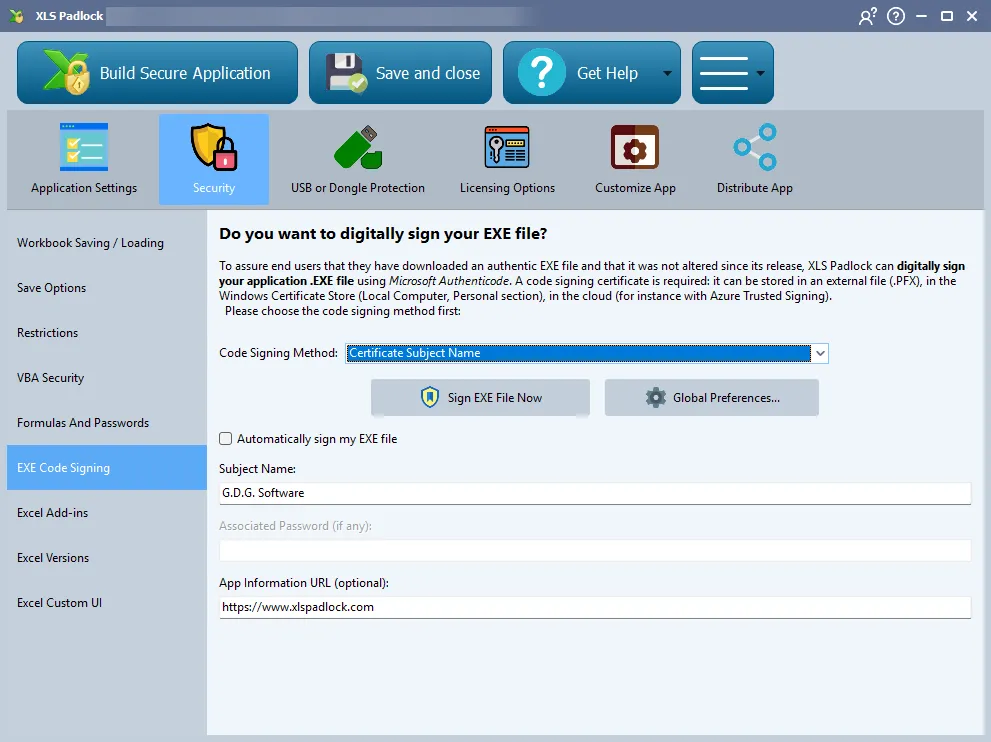
XLS Padlock simplifies the code signing process by handling the necessary steps internally.
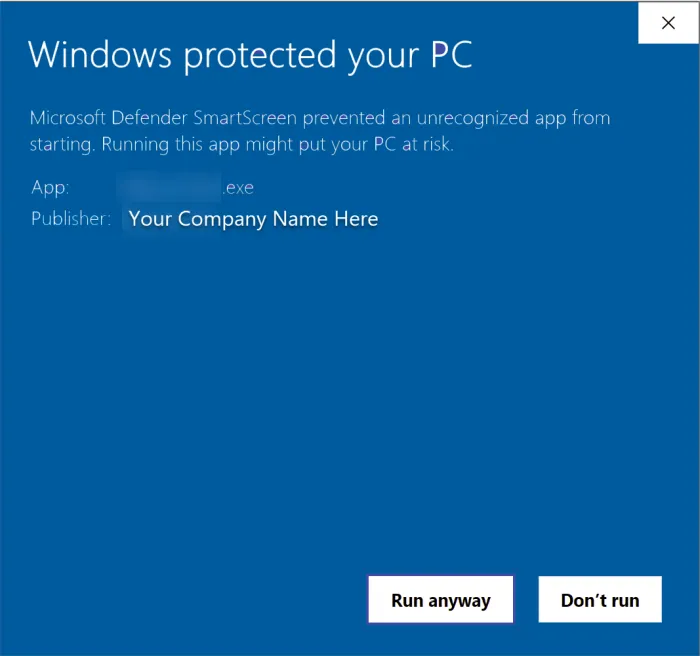
How to Obtain a Code Signing Certificate
Section titled “How to Obtain a Code Signing Certificate”To sign your application, you need a valid Code Signing Certificate from a trusted Certificate Authority (CA) like Sectigo or Digicert. Other certificate types, like SSL/TLS, are not compatible.
Token-Based Certificates (HSMs)
Section titled “Token-Based Certificates (HSMs)”As of June 1, 2023, all new code signing certificate private keys must be stored on secure hardware, such as a FIPS 140-2 Level 2 compliant USB token or Hardware Security Module (HSM). This enhances security by preventing key theft. XLS Padlock works seamlessly with token-based certificates; just ensure the token is plugged into your computer when you build your application.
Configuring Code Signing in XLS Padlock
Section titled “Configuring Code Signing in XLS Padlock”In the XLS Padlock interface, navigate to the Security -> EXE Code Signing tab. To enable signing, choose your preferred Code Signing Method:
- PFX File: Uses a certificate stored in a
.pfx(or.p12) file. This is a legacy method for older certificates. Enter the path in the PFX File Path field or click the browse button next to it, then enter the certificate password in Associated Password (if any). - Certificate Subject Name: Locates the certificate in the Windows Certificate Store by its Subject Name. This is a common method for certificates on hardware tokens.
- Certificate Thumbprint: Locates the certificate in the Windows Certificate Store by its unique Thumbprint (a SHA-1 hash). This is often the most reliable method.
- SignTool Commands: An advanced method that allows you to provide custom commands for Microsoft’s
SignTool.exeutility, offering maximum flexibility. See the command markers below. - Azure Artifact Signing (formerly Trusted Signing): Signs your application with Microsoft’s cloud-based service. See our Azure Artifact Signing tutorial for the initial setup, and the Exclude credentials option below if signing fails after
az login. - JSign: Signs your application with the open-source JSign tool, which requires a Java runtime (JRE or JDK) on the PATH. Set the path to
jsign.jarin the Global Preferences, then enter one JSign command per line, using the same command markers as SignTool Commands.
Command markers for SignTool Commands and JSign
Section titled “Command markers for SignTool Commands and JSign”With the SignTool Commands and JSign methods, you type one command per line. Before running each command, XLS Padlock replaces two markers:
| Marker | Replaced with |
|---|---|
{$OUTPUTFILE$} | The full path of the EXE file to sign. |
{$OUTPUTFOLDER$} | The path of the folder that contains the EXE file, without a trailing backslash. |
Quote paths that may contain spaces. To reference a file next to the EXE file, add the backslash yourself, for example "{$OUTPUTFOLDER$}\my-metadata.json". XLS Padlock 2026.2 or later is required for {$OUTPUTFOLDER$} to be replaced when it is directly followed by a backslash or a quote. The default SignTool command, defined in the Global Preferences, is:
sign /tr http://timestamp.sectigo.com /td sha256 /fd sha256 /a /v "{$OUTPUTFILE$}"Exclude credentials (Azure Artifact Signing)
Section titled “Exclude credentials (Azure Artifact Signing)”When XLS Padlock signs with the built-in Azure Artifact Signing method, the Azure signing tool tries several credential types one after the other, in a fixed order, until one succeeds. On some computers, a credential type tried before the Azure CLI credential fails and aborts the whole signing operation, even though az login succeeded and the certificate profile is valid. The compilation log then shows an authentication error such as MsalCachePersistenceException: Persistence check failed.
The optional Exclude credentials (one per line, optional) field, available since XLS Padlock 2026.2, lists the credential types to skip. Click Exclude all except Azure CLI to fill in the recommended configuration for a development computer authenticated with az login: every credential type except AzureCliCredential.
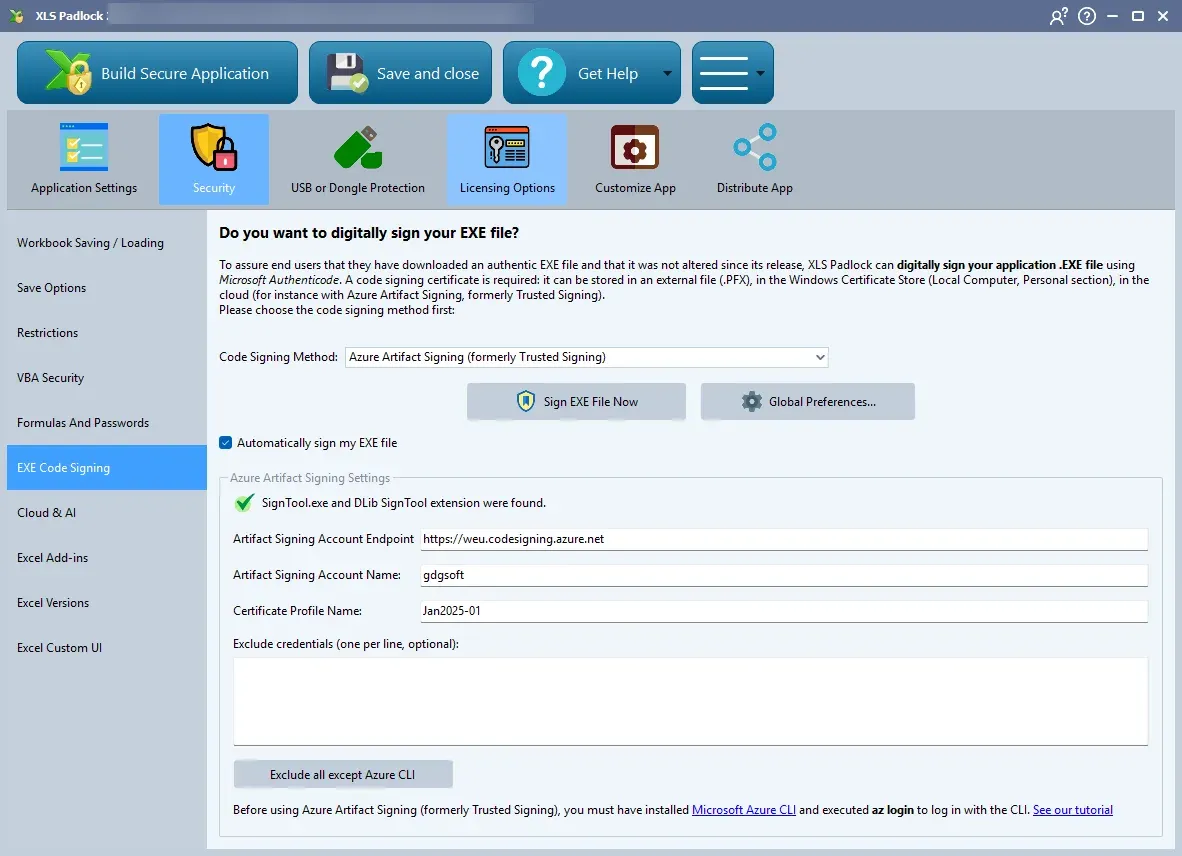
The accepted names are the nine credential types documented by Microsoft: ManagedIdentityCredential, WorkloadIdentityCredential, SharedTokenCacheCredential, VisualStudioCredential, VisualStudioCodeCredential, AzureCliCredential, AzurePowerShellCredential, AzureDeveloperCliCredential and InteractiveBrowserCredential. Names are checked when signing starts (case-insensitive, blank lines and duplicates ignored). An unknown name stops the signing with an error, because the signing tool would otherwise ignore it silently. Leave the field empty to keep the default behavior: the signing metadata is then identical to previous releases. The value is saved with your project.
XLS Padlock writes the signing metadata file (sign-metadata.json) next to the output EXE file at every signing. Do not edit that file by hand: your changes would be overwritten at the next build.
Performing the Signing
Section titled “Performing the Signing”- Manual Signing: Click Sign EXE File Now to immediately sign the last built EXE file.
- Automatic Signing: Check Automatically sign my EXE file to have XLS Padlock sign the EXE every time you build your application.